• Our Solutions
  • Contact Us
Schedule a Demo

Solutions

People Safety - HSE Suite

Connectivity - Volant

People Safety - HSE Suite

Connectivity - Volant

Commercial

3
  • Placeholder – Commercial
  • Placeholder – Commercial
  • [Placeholder] – Commercial

Contact Us

2
  • Tell us!
  • Tell us!

Danger Dodgers

3
  • Support
  • Specification for Danger Dodgers
  • Gameplay

E-Permit To Work (ePTW+)

5
  • What are the features available in ePTW+?
  • How do I update the ePTW user profile?
  • What are the features available in ePTW+?
  • How do I update the ePTW user profile?
  • Where do I find guideline for ePTW+?

Getting Started

11
  • How to view the support ticket?
  • How to request for VOLANT Demo?
  • How to register to Customer Portal?
  • How to file a support request ticket?
  • How do I clear browser cache and cookies in my browser?
  • How to view the support ticket?
  • How to request for VOLANT Demo?
  • How to register to Customer Portal?
  • How to file a support request ticket?
  • How do I clear browser cache and cookies in my browser?
  • How do I clear browser cache and cookies in my browser

IntAI

2
  • General FAQ on IntAI
  • General FAQ on IntAI

Marketing

3
  • Placeholder – Marketing
  • Placeholder – Marketing
  • [Placeholder] – Marketing

OSIS

5
  • What is the benefit of OSIS?
  • What are OSIS key integrations?
  • What is the benefit of OSIS?
  • What are OSIS key integrations?
  • What are OSIS key features?

Sales

3
  • Placeholder – Sales
  • Placeholder – Sales
  • [Placeholder] – Sales

SENTINEL

6
  • How to Use Map and Navigation Features
  • How to Request Technical Support
  • How to Navigate SENTINEL Dashboard
  • How is the flow of Alert System
  • How Do I Use Advanced Search and Pagination
  • How Can I Download the User Manual

STEAR

46
  • Will the backbone schedule be updated after you made your reservation in STEAR?
  • Why should you use STEAR to make your reservation?
  • Who makes reservation for loose stock items and empty containers?
  • What is the purpose of the leadership dashboard?
  • What is the purpose of STEAR?
  • What is Tenant Admin Portal?
  • Is there a cut-off time for reservation in STEAR?
  • How will the voyage route be optimized?
  • How to view KPI Dashboard in STEAR Platform+?
  • How to track vessel or voyage in STEAR Platform+ ?
  • How to request STEAR Demo?
  • How to navigate to the Tenant Admin Portal?
  • How to access to the Tenant Admin Portal?
  • How can I add or remove users from our company’s account?
  • D-30 Schedule Generation
  • D-30 / D-7 Schedule Generation
  • D-3 Schedule Optimisation (Demand Fulfilment)
  • D-3 Schedule Optimisation (Demand Data)
  • Will the backbone schedule be updated after you made your reservation in STEAR?
  • Why should you use STEAR to make your reservation?
  • Who makes reservation for loose stock items and empty containers?
  • What is the purpose of the leadership dashboard?
  • What is the purpose of STEAR?
  • What is Tenant Admin Portal?
  • Is there a cut-off time for reservation in STEAR?
  • How will the voyage route be optimized?
  • How to view KPI Dashboard in STEAR Platform+?
  • How to track vessel or voyage in STEAR Platform+ ?
  • How to request STEAR Demo?
  • How to navigate to the Tenant Admin Portal?
  • How to access to the Tenant Admin Portal?
  • How can I add or remove users from our company’s account?
  • D-3 Schedule Optimisation (error)
  • Is there a mobile app available for the product?
  • Is the Schedule Download Feature Available in STEAR?
  • I’m having trouble navigating the platform. Where can I find guides?
  • I see a blank white screen after logged in. What should I do?
  • I forgot my password. How can I reset it?
  • I encountered an error message. What should I do?
  • I am unable to log in to the system. What should I do?
  • How to troubleshoot vessel not appearing in the Map?
  • How do I update my roles/position?
  • How can I upgrade my subscription plan?
  • How can I provide feedback or report a bug about the product?
  • D-3 Schedule Optimisation
  • Are there specific browser requirements for using the platform?

Support

12
  • Service Level Agreement (SLA)
  • Service Level Agreement
  • Intake Management
  • How do a customer get onboarded to Virtus product?
  • Crafting and Publishing Articles in Knowledge Base
  • Service Level Agreement (SLA)
  • Service Level Agreement
  • Intake Management
  • How do a customer get onboarded to Virtus product?
  • How do a customer get onboarded to Virtus product?
  • Service Level Agreement (SLA)
  • Intake Management

Unsafe Act Unsafe Condition (UAUC)

6
  • HSSE UAUC Website Login
  • HSSE UAUC Mobile App
  • How to report an UAUC?
  • HSSE UAUC Website Login
  • HSSE UAUC Mobile App
  • How to report an UAUC?

VOLANT

14
  • What is Volant?
  • Volant Technical
  • Volant in glance
  • Volant Frequently Asked Questions (Technical)
  • Volant Frequently Asked Questions (General)
  • What is Volant?
  • Volant Technical
  • Volant in glance
  • Volant Frequently Asked Questions (Technical)
  • Volant Frequently Asked Questions (General)
  • VOLANT x University Deployment
  • VOLANT Success Story at Offshore Connectivity
  • VOLANT in Mesh Configuration
  • VOLANT Channel Bonding
View Categories
  • Home
  • Virtus IP Knowledge Base
  • STEAR
  • D-30 Schedule Generation

D-30 Schedule Generation

2 min read

Step 1 – Generate D-30 Schedule (By Week)

Go to Schedule > Create Vessel Schedule > select Region, Supply Base, Date Range and Service Type. Then, click ‘Start Optimisation’.
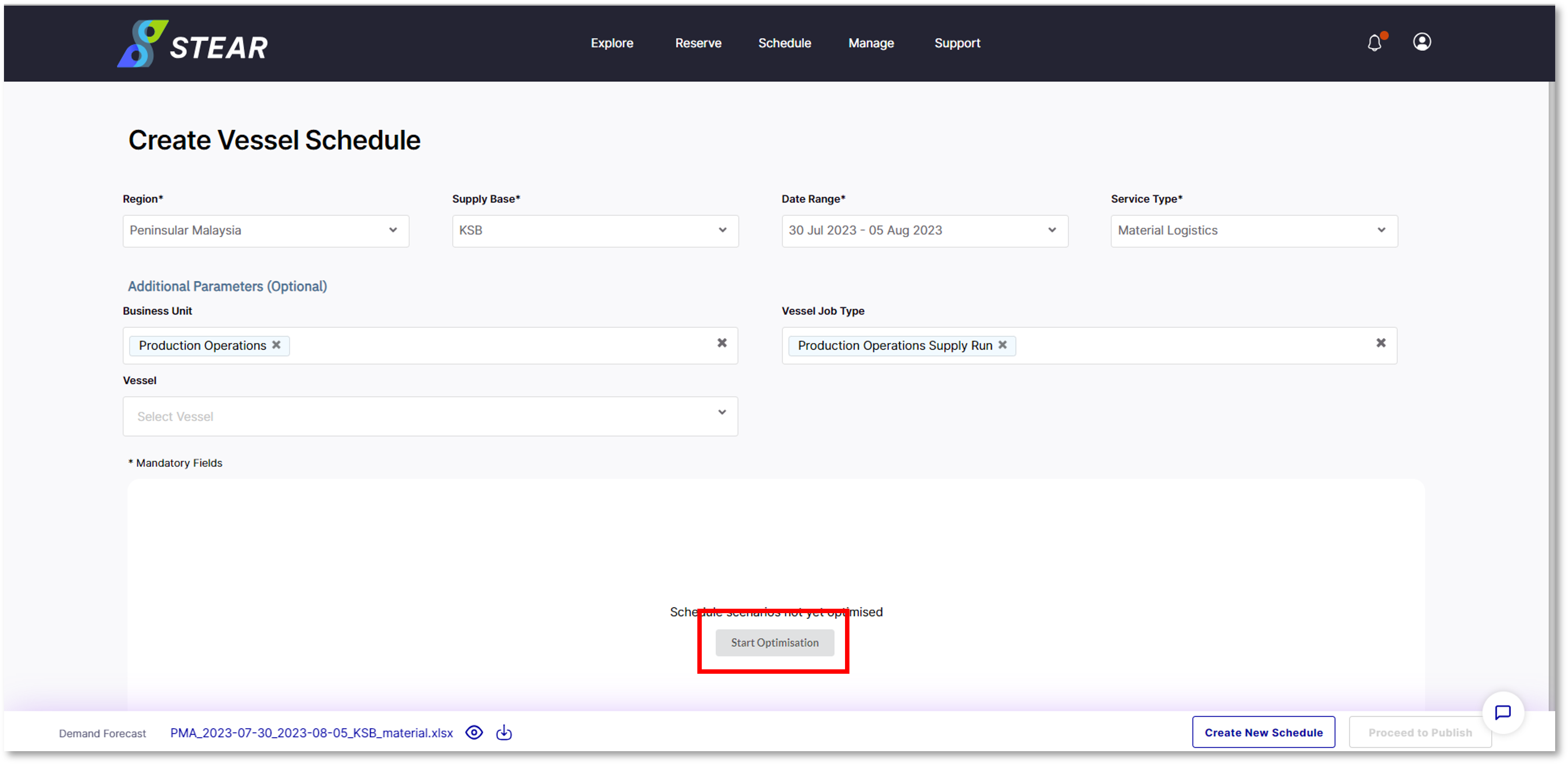
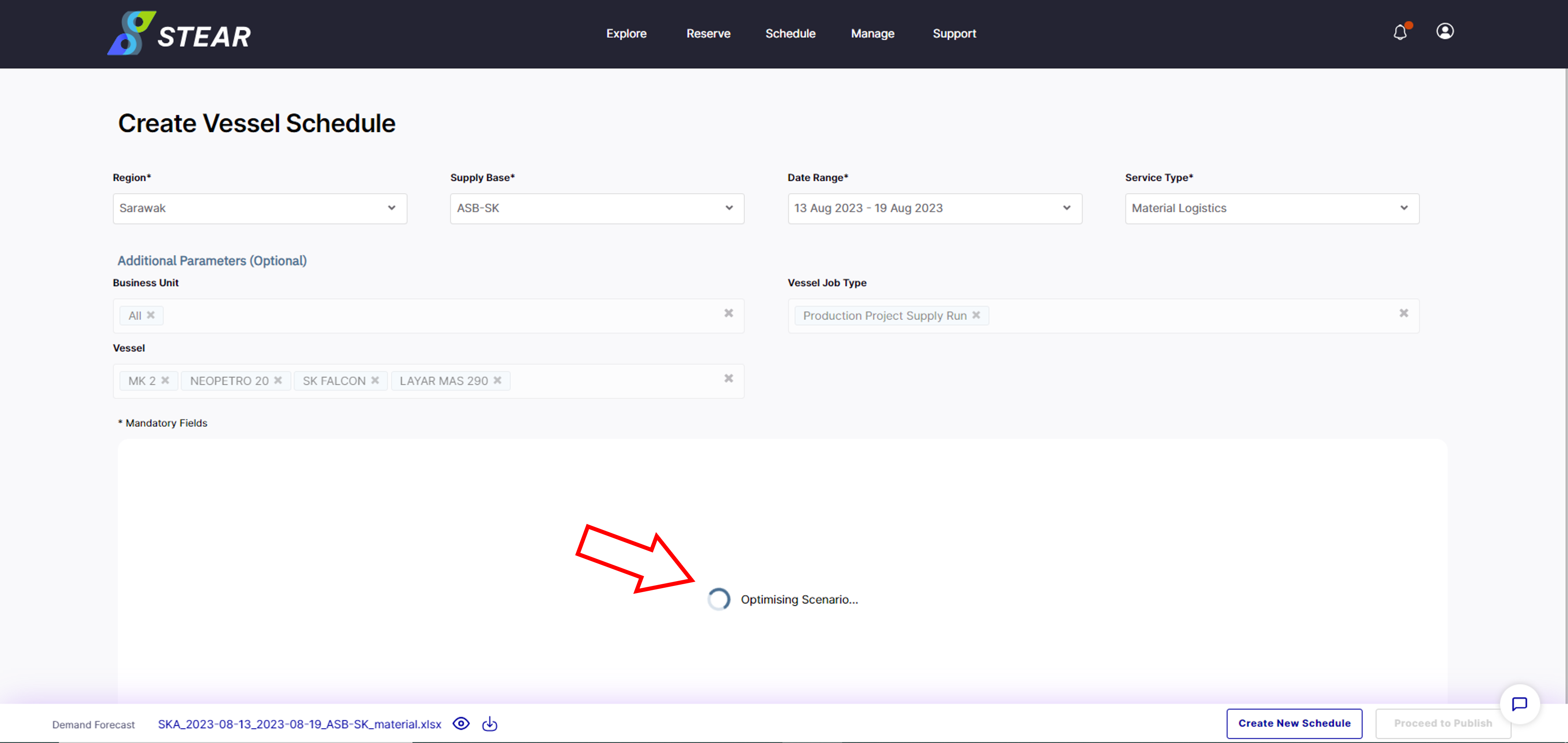
Picture1-1This process will take around 20 – 30 minutes to be completed.
Picture2-1

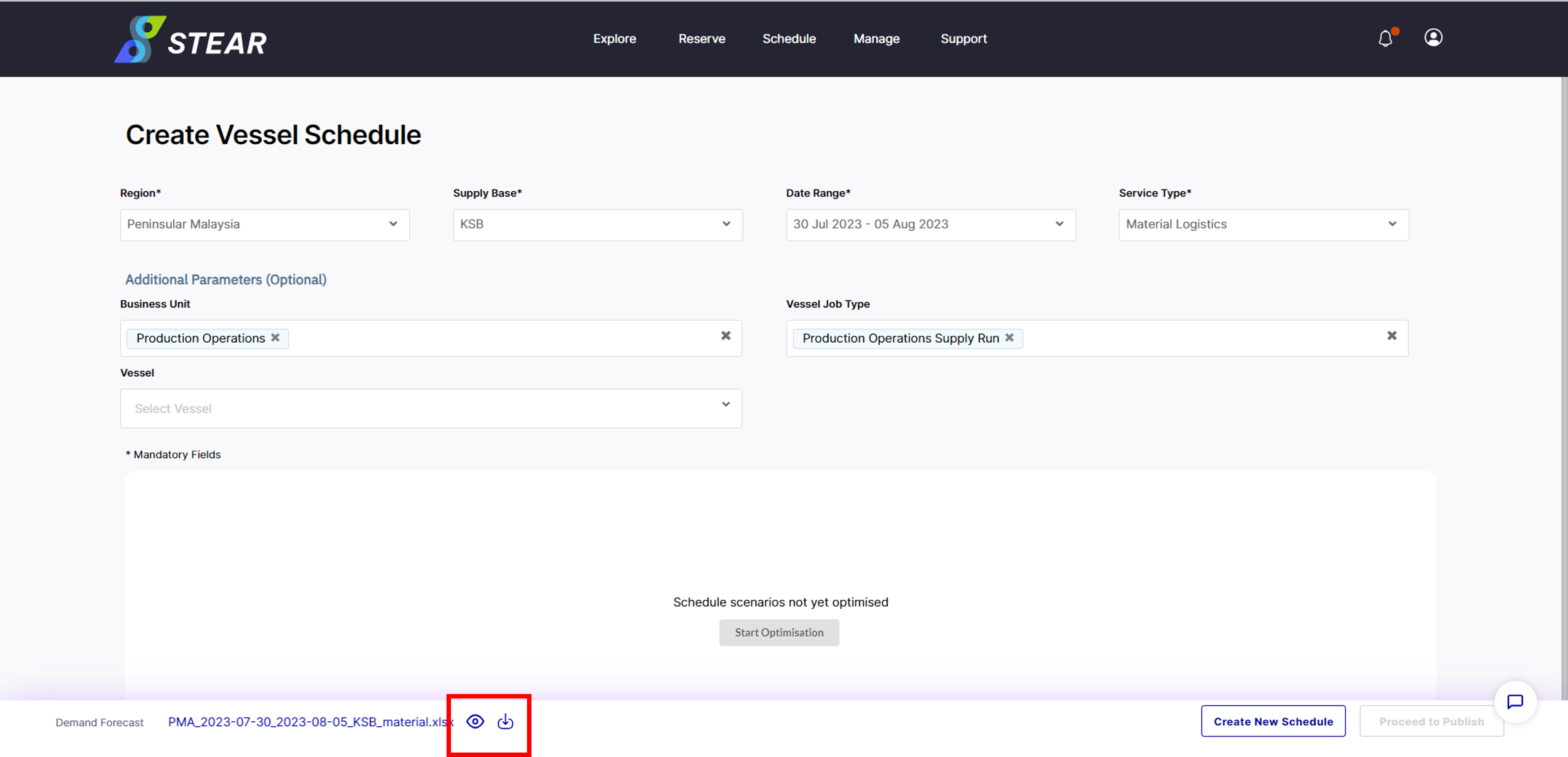
Cont. Optional Step – View Demand Forecast

To view the forecast data, click on the ‘Eye’ icon. To download data, click ‘Download’ icon.
Picture4

Step 2 – Select Scenario

After Optimisation is done, two options of scenario are proposed – Ideal and Alternative. Choose either scenario and scroll down to view the voyage route proposed.
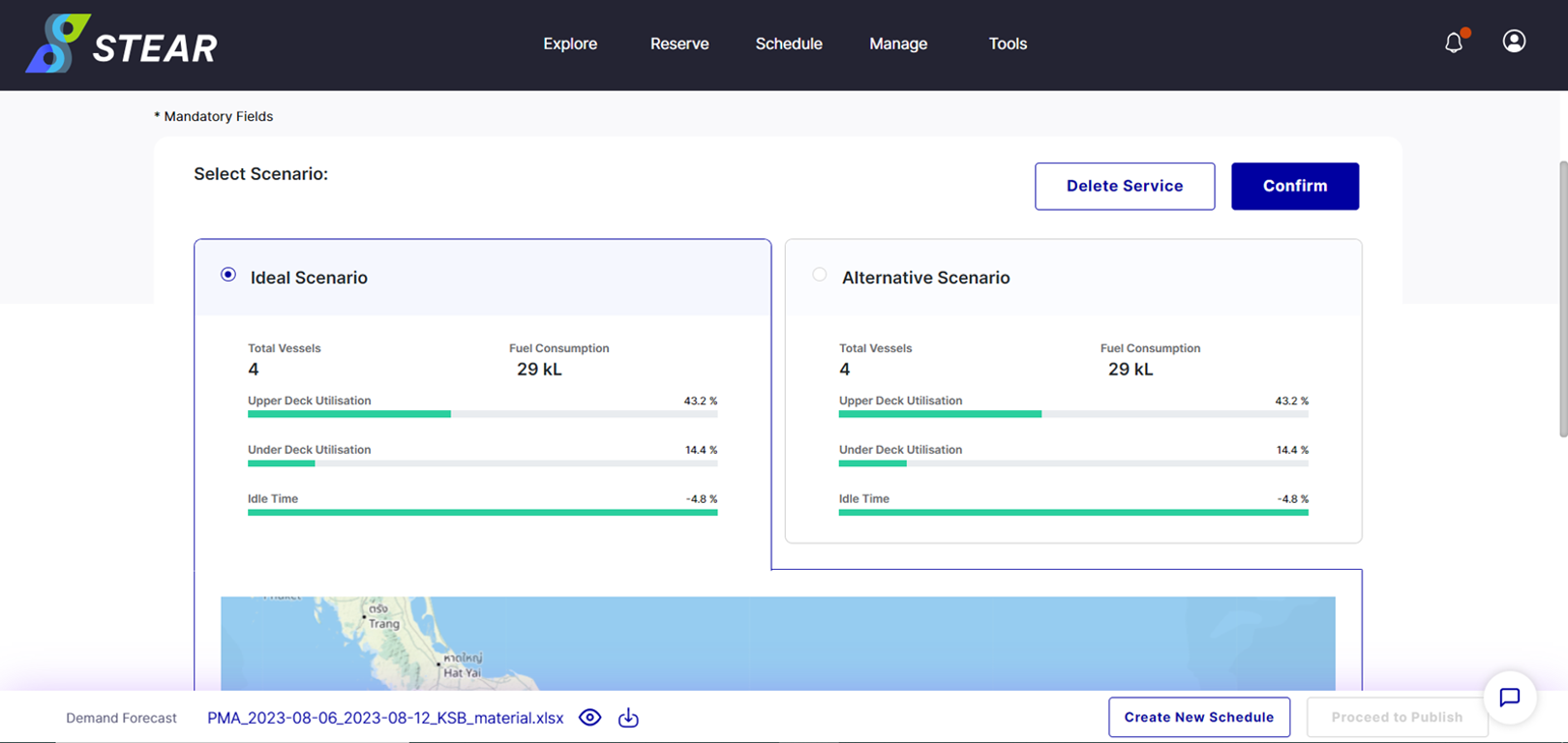
Picture5

Step 3 – Modify Scenario or Assign Vessel

To modify or assign vessel for the “Break In”, click on the voyage ID and amend where necessary. Click ‘Save as Custom Scenario’ to save the changes.
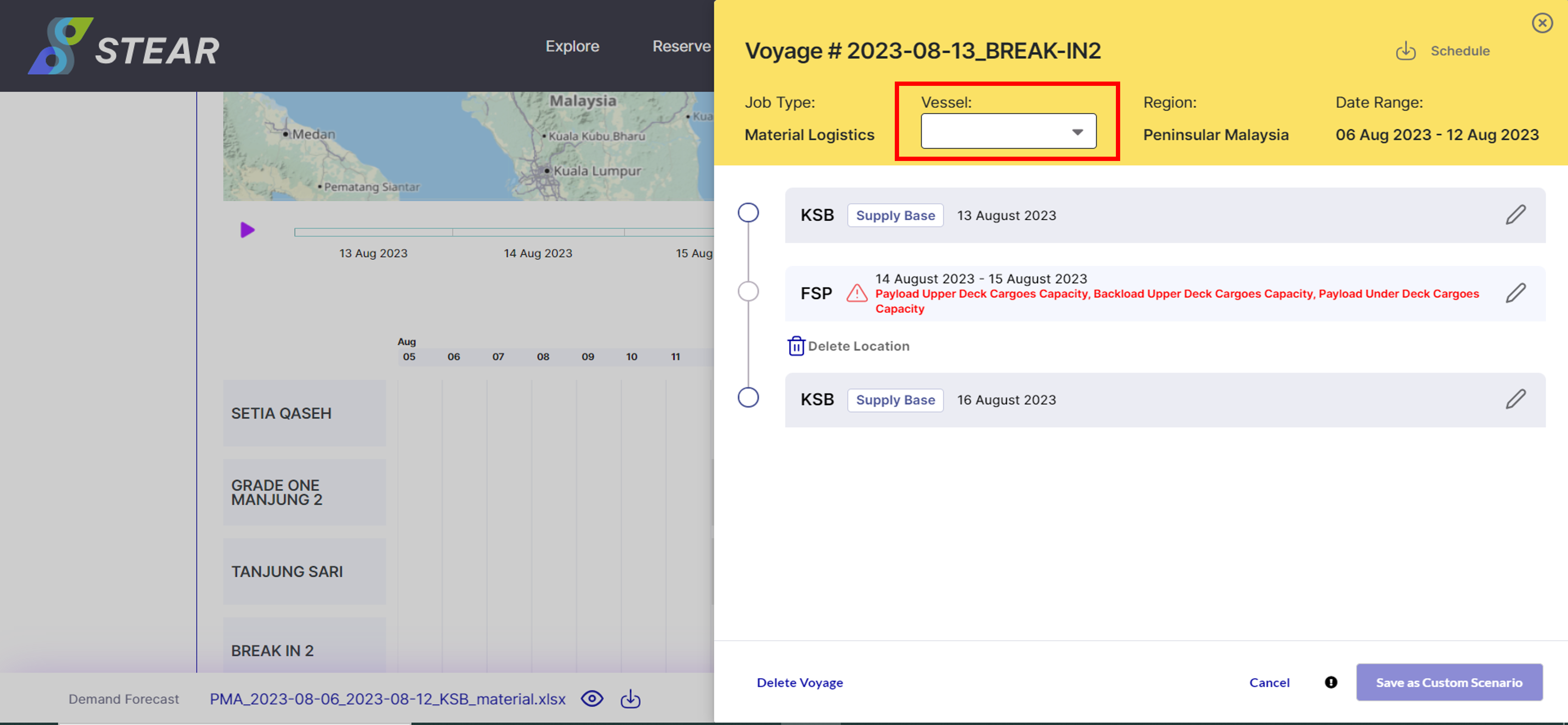
Picture6

Step 4 – Select Custom Scenario

After saving the customized scenario, Custom Scenario tab will appear. Click ‘Confirm’ to view the customized proposed voyage.
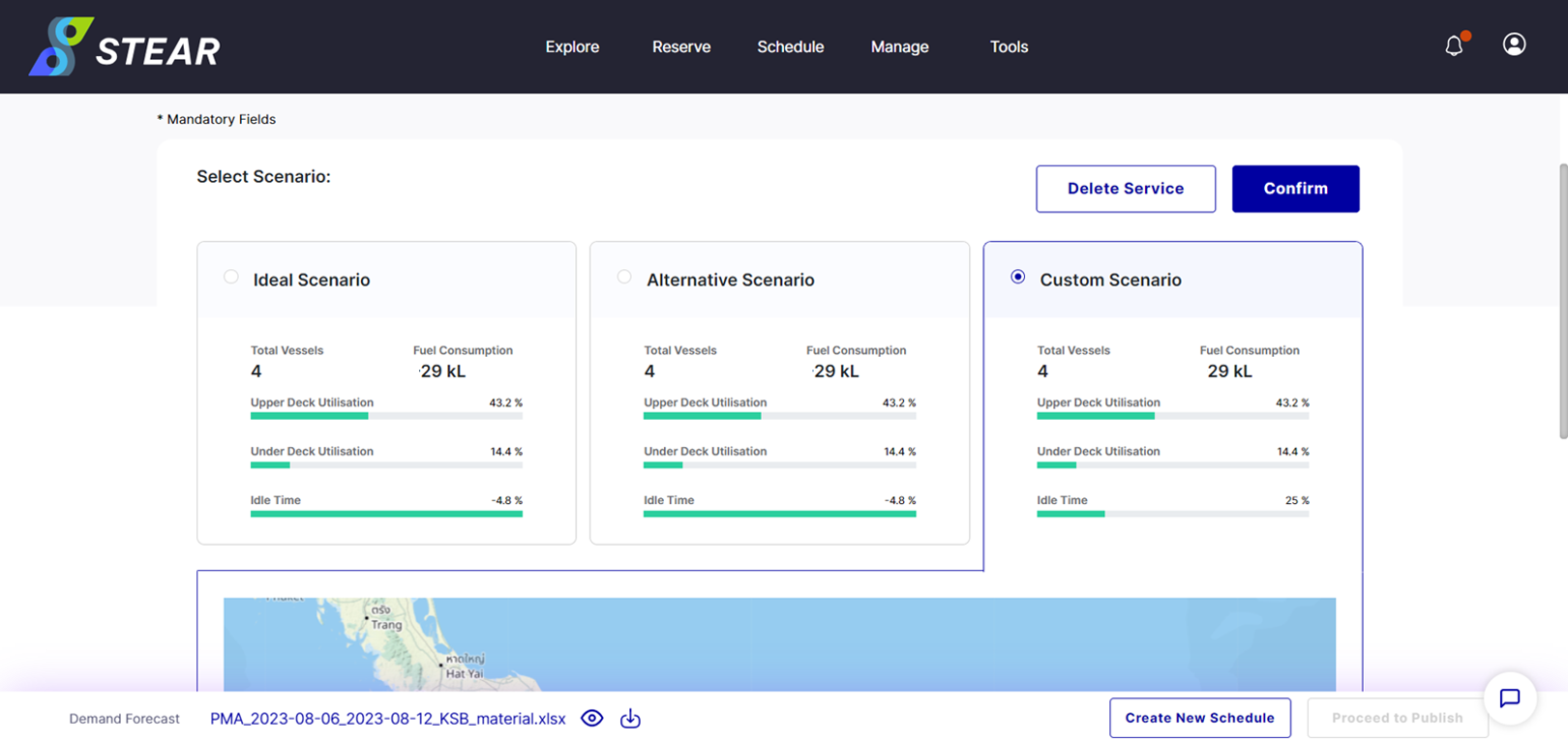
Picture7

Step 5 – View Custom Scenario

Ensure the drafted schedule has the correct voyage route and vessel assigned and click ‘Proceed to Publish’.
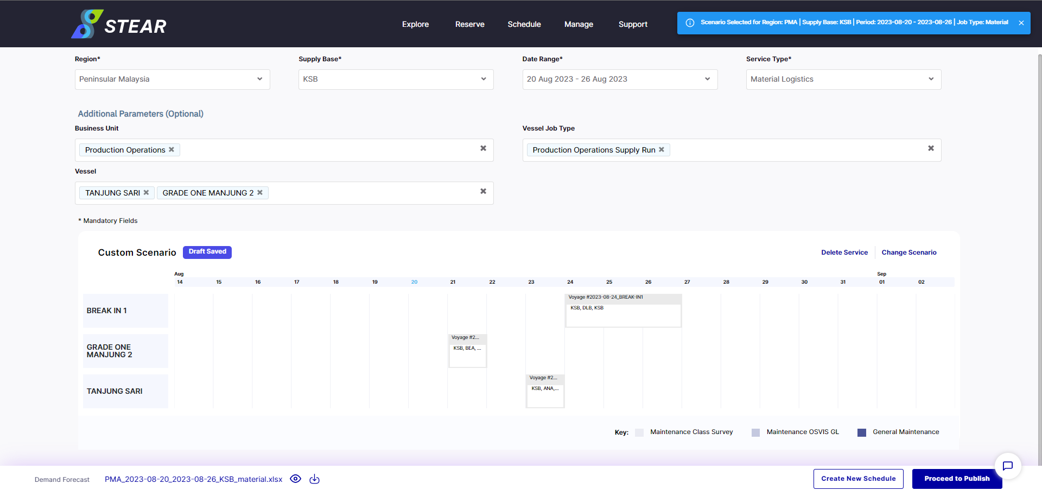
Picture8

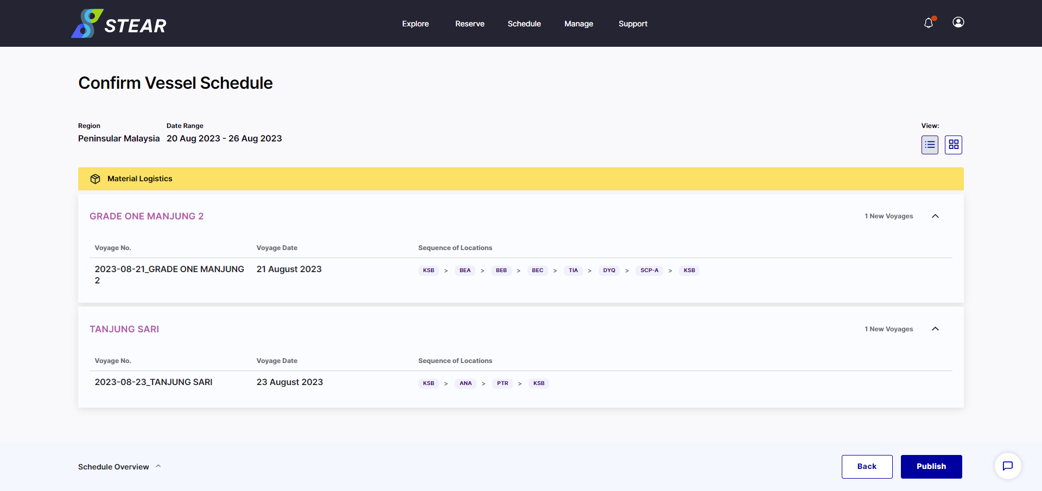
Step 6 – Confirm Vessel Schedule

Final check, once everything is good to go, click on ‘Publish’ to publish the schedule to VVS and also PLT.
Picture9

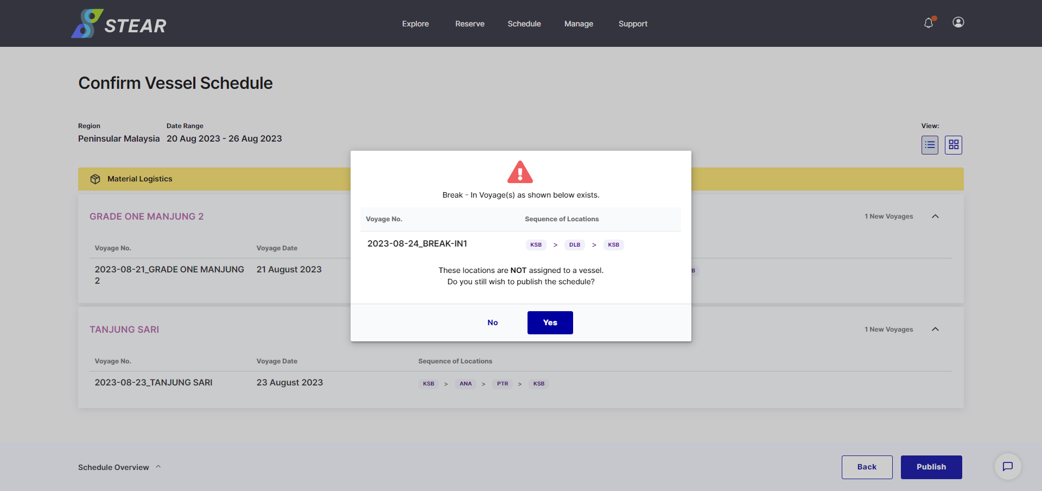
Step 7 – Publish Vessel Schedule

Schedule for break-in vessel will not be published unless user put available vessel that replacing “BREAK-IN1”. If agree, click ‘Publish’.
Picture10
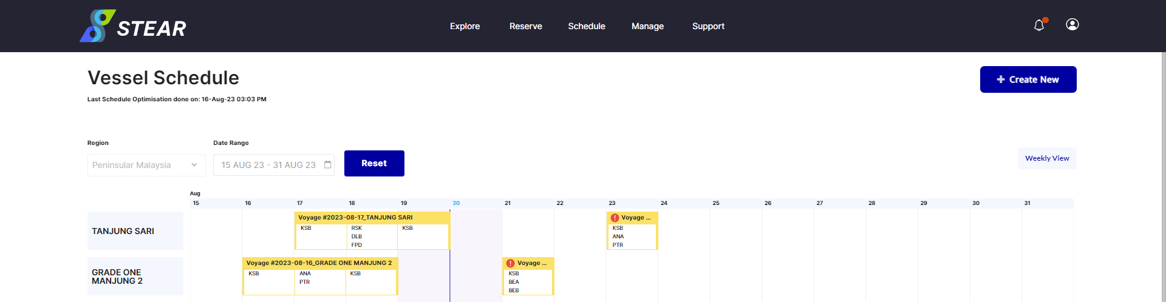
Cont. – Published Schedule

Vessel schedule with voyage details will be generated and click ‘Publish’ to confirm with the drafted schedule.
Picture11

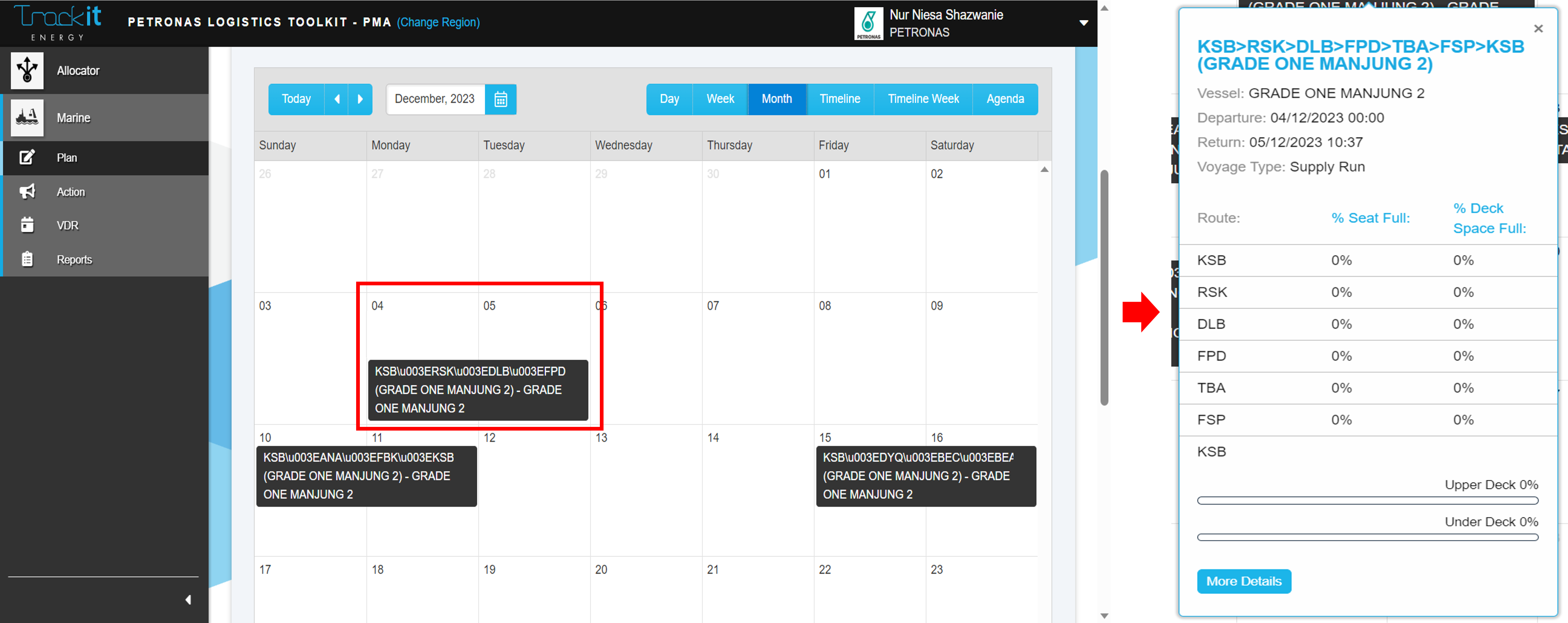
Step 8 – View Schedule in PLT (Plan)

Published voyage will be reflected to PLT. To view, go to Marine > Plan > select Date. Select voyage and click ‘More Details’ to see further.
Picture14

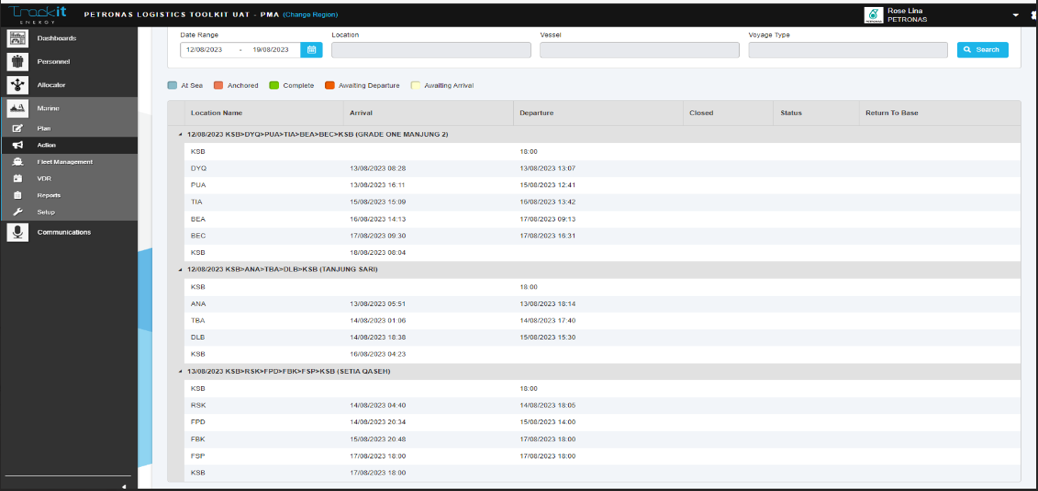
Step 9 – View Schedule in PLT (Action)

Go to Marine > Action > select Date Range and Vessel > click ‘Search’. Click on the voyage name to see the details.
Picture15

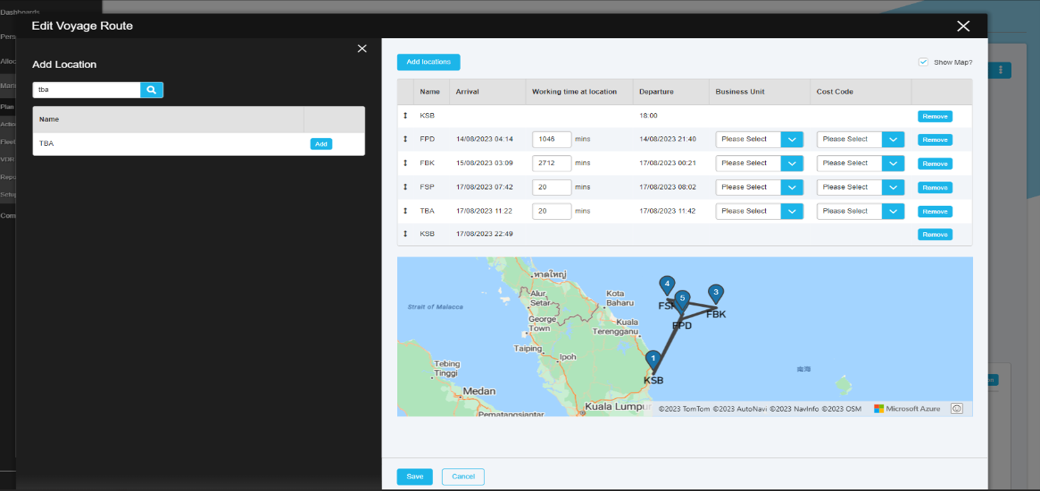
Step 10 – Edit Voyage Route

To edit the voyage, click three dots at the right upper page and click ‘Edit Voyage Route’. This tab will appear, and scheduler can edit the location by clicking ‘Add Locations’. Then, click ‘Save’.
Picture16

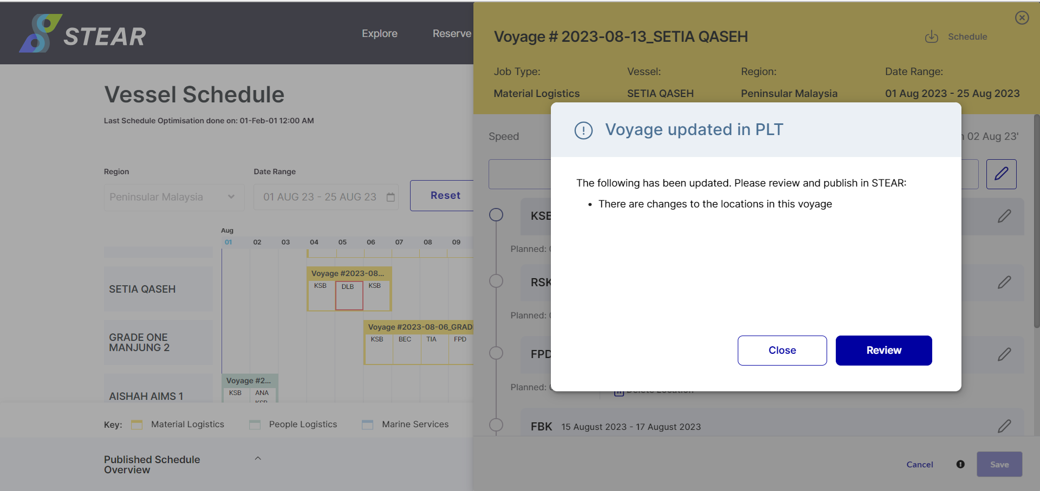
Step 11 – View Schedule in STEAR (VVS)

Successful edited schedule will also be reflected at Schedule > View Vessel Schedule (VVS). Click ‘Review’ to see the details.
Picture17

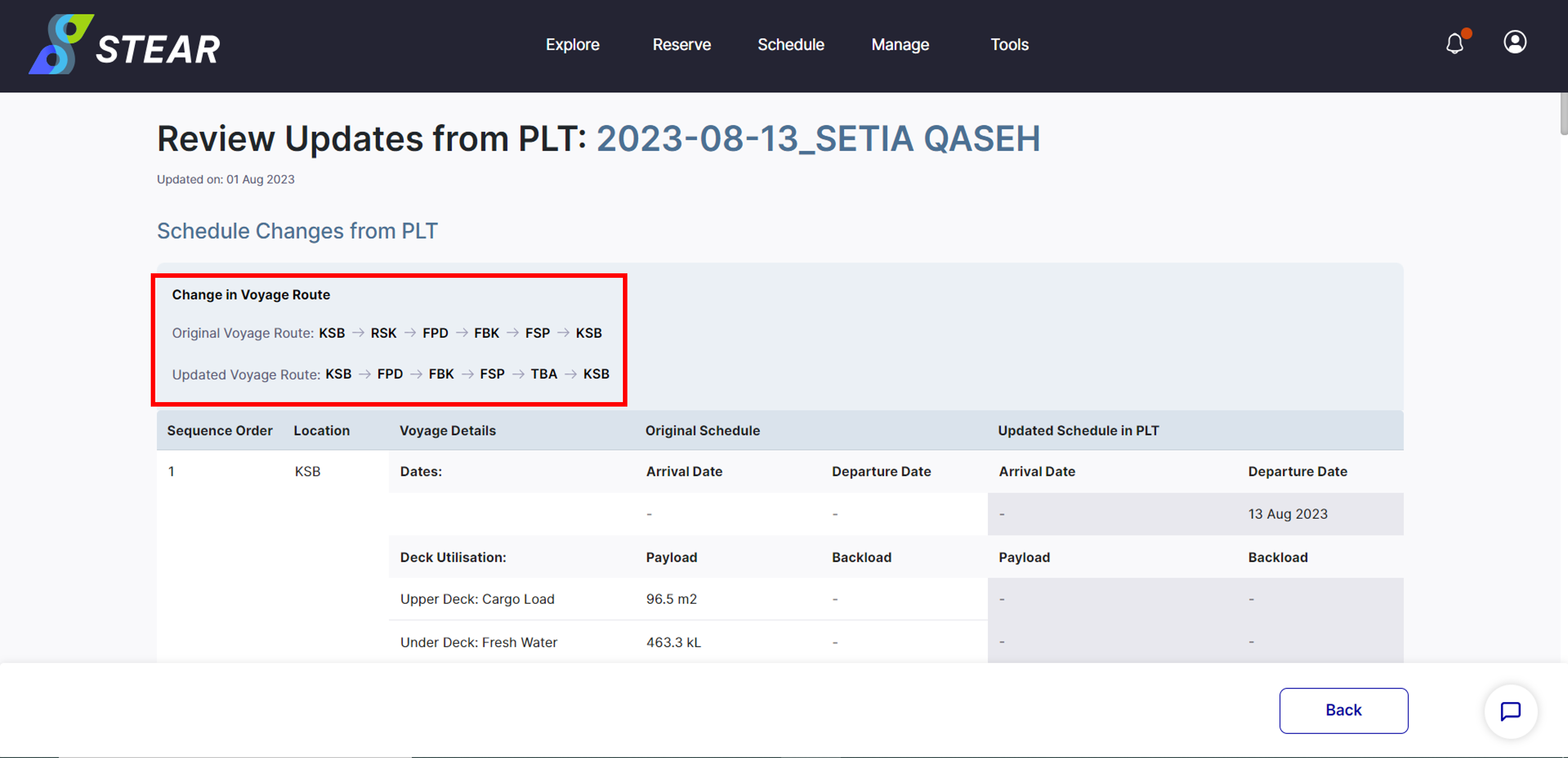
Step 12 – Details of Edited Voyage

Here are the details of Voyage Changes from PLT. Click ‘Back’ to exit this view.
Picture19

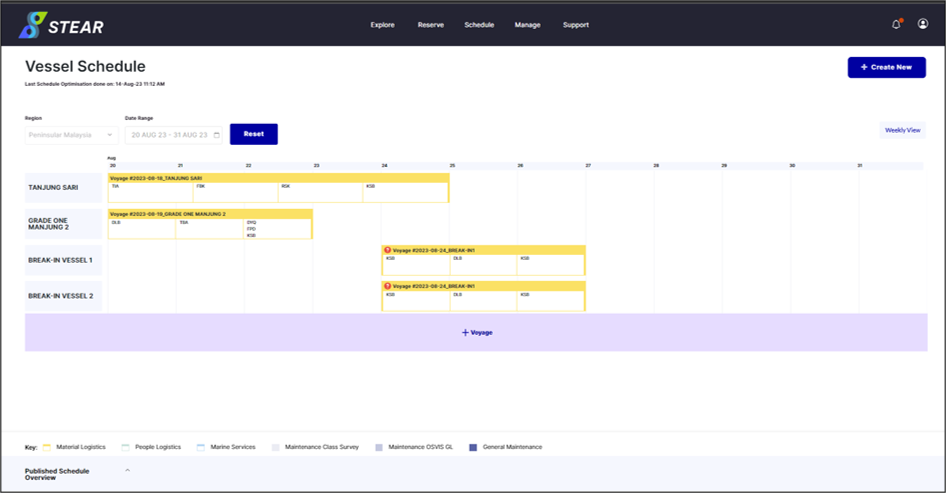
Step 13 – View Schedule in STEAR (VVS)

Successful published schedule can be view at Schedule > View Vessel Schedule (VVS).
Picture20


Updated on September 23, 2025

What are your Feelings

  • Happy
  • Normal
  • Sad

Share This Article :

  • Facebook
  • X
  • LinkedIn
  • Pinterest

Leave a Reply Cancel reply

Your email address will not be published. Required fields are marked *

Quick Links

Contact Us
Privacy Policy

Our Location

Virtus IP Sdn Bhd,
Level 17, PETRONAS Tower 3,
Kuala Lumpur City Centre,
50088 Kuala Lumpur

Let’s Connect

VIRTUS

support@virtus-ip.com

Quick Links

Contact Us
Privacy Policy

Our Location

Virtus IP Sdn Bhd, Level 17,
PETRONAS Tower 3,
Kuala Lumpur City Centre,
50088 Kuala Lumpur

Let’s Connect

VIRTUS

support@virtus-ip.com

© 2025 VIRTUS. All Rights Reserved.