Step 1 – Download Demand Fulfillment Template
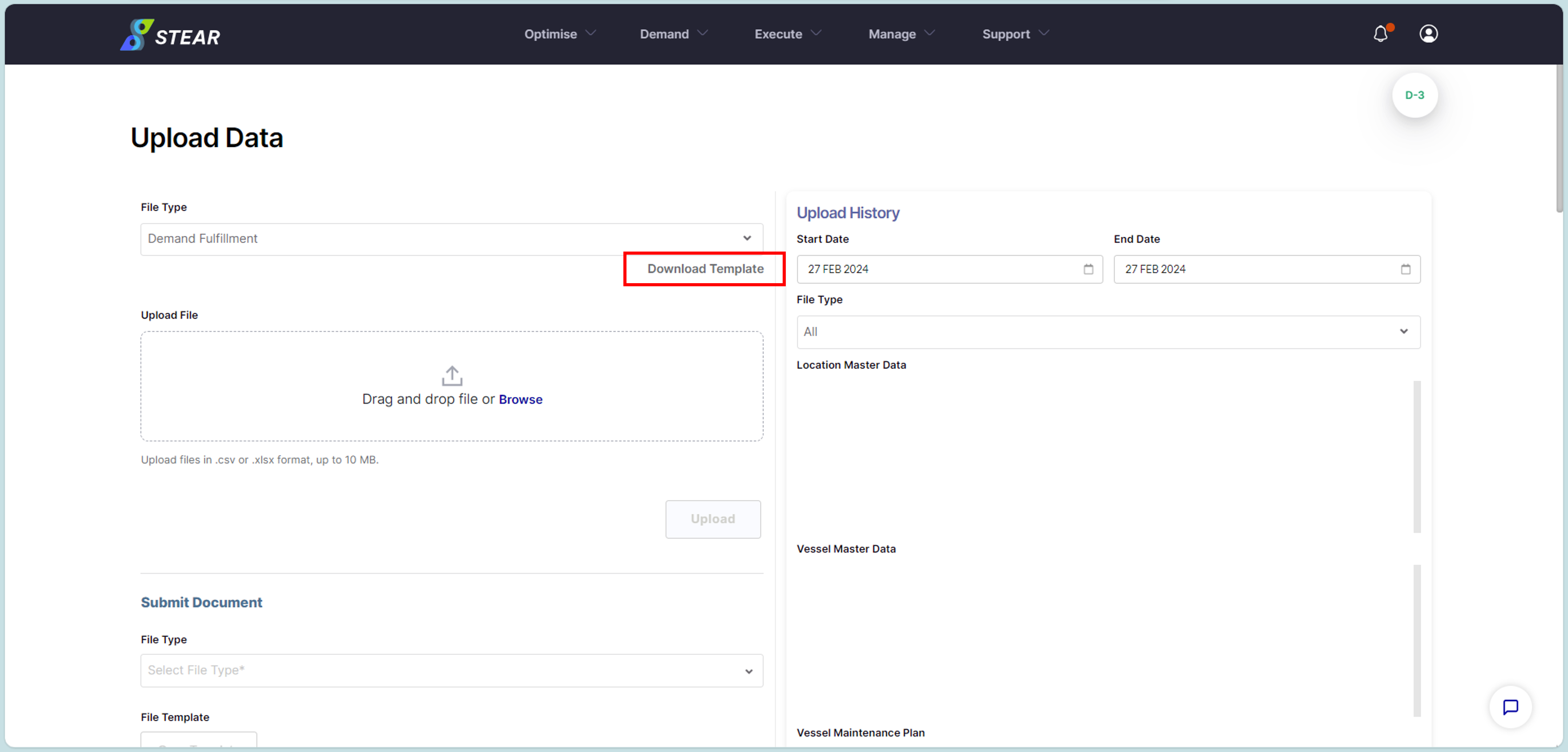
Go to Optimise > Upload Data > choose File Type as “Demand Fulfillment” > click ‘Download Template’.
Step 2 – Complete Demand Fulfillment File
Open downloaded Demand Fulfillment (DF) template > fill in the Excel file with demand requested by user (similar to Preload List) > Save file with voyage name_departure date.
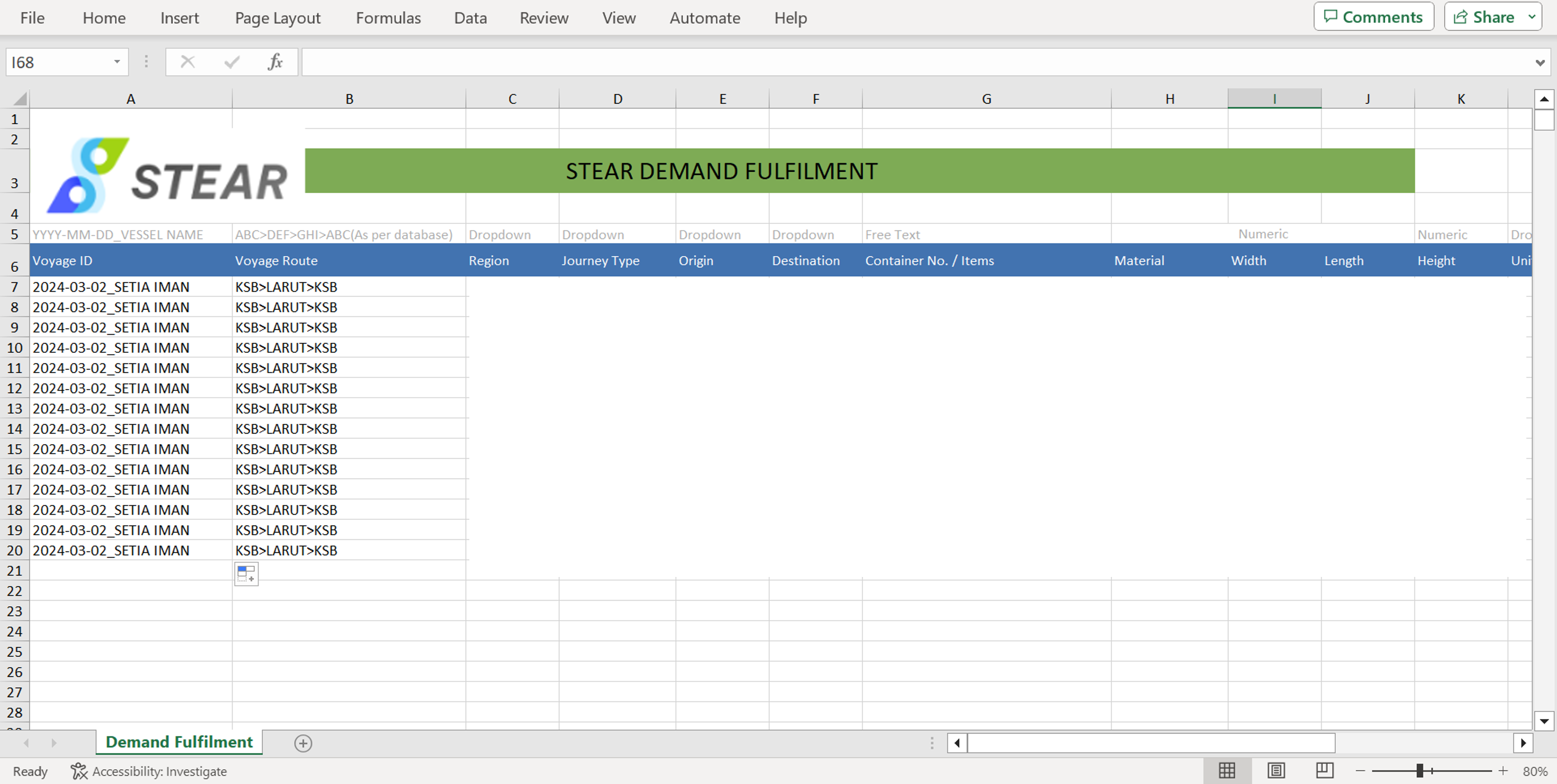
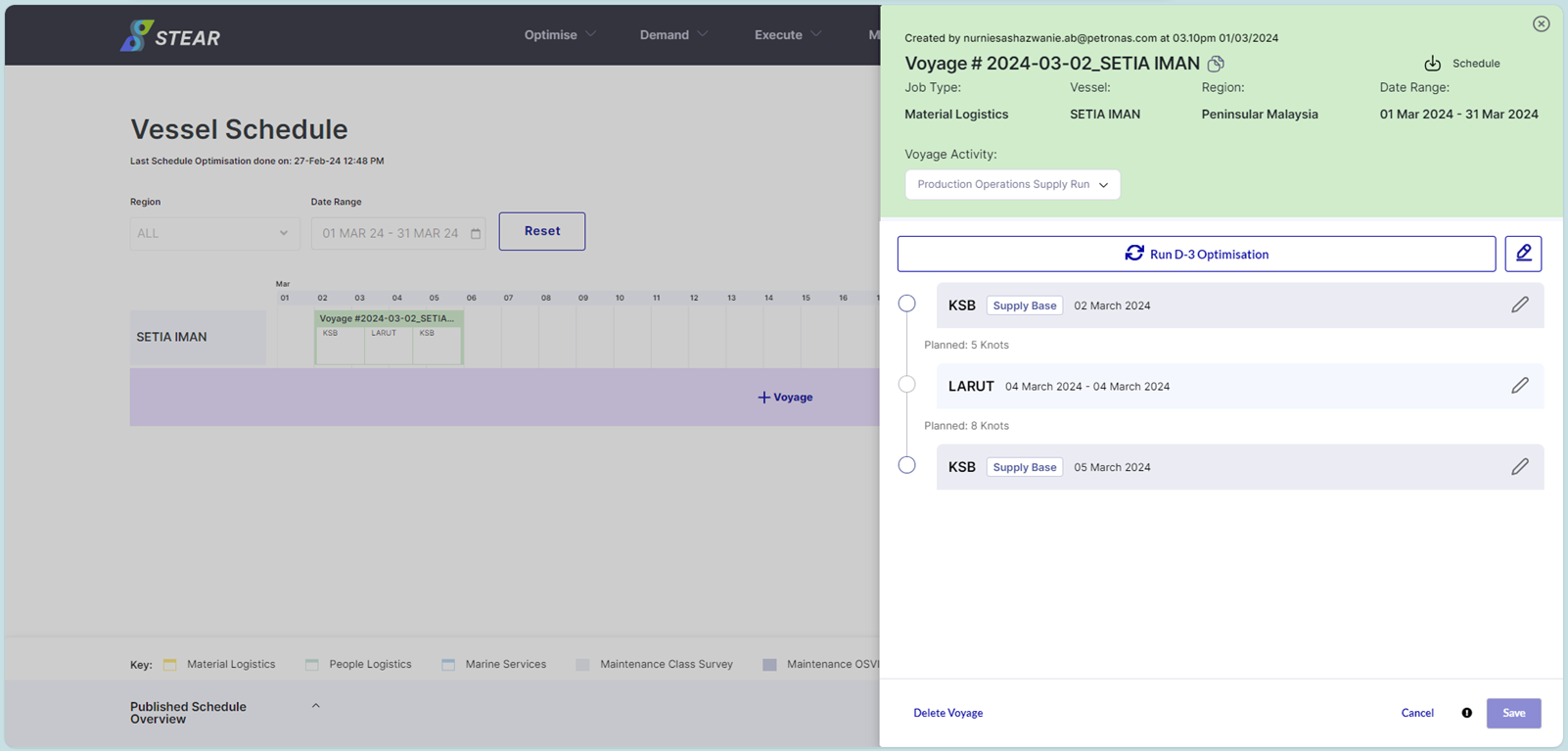
(Continue) Complete Demand Fulfillment File: Voyage ID is taken from voyage created in VVS.
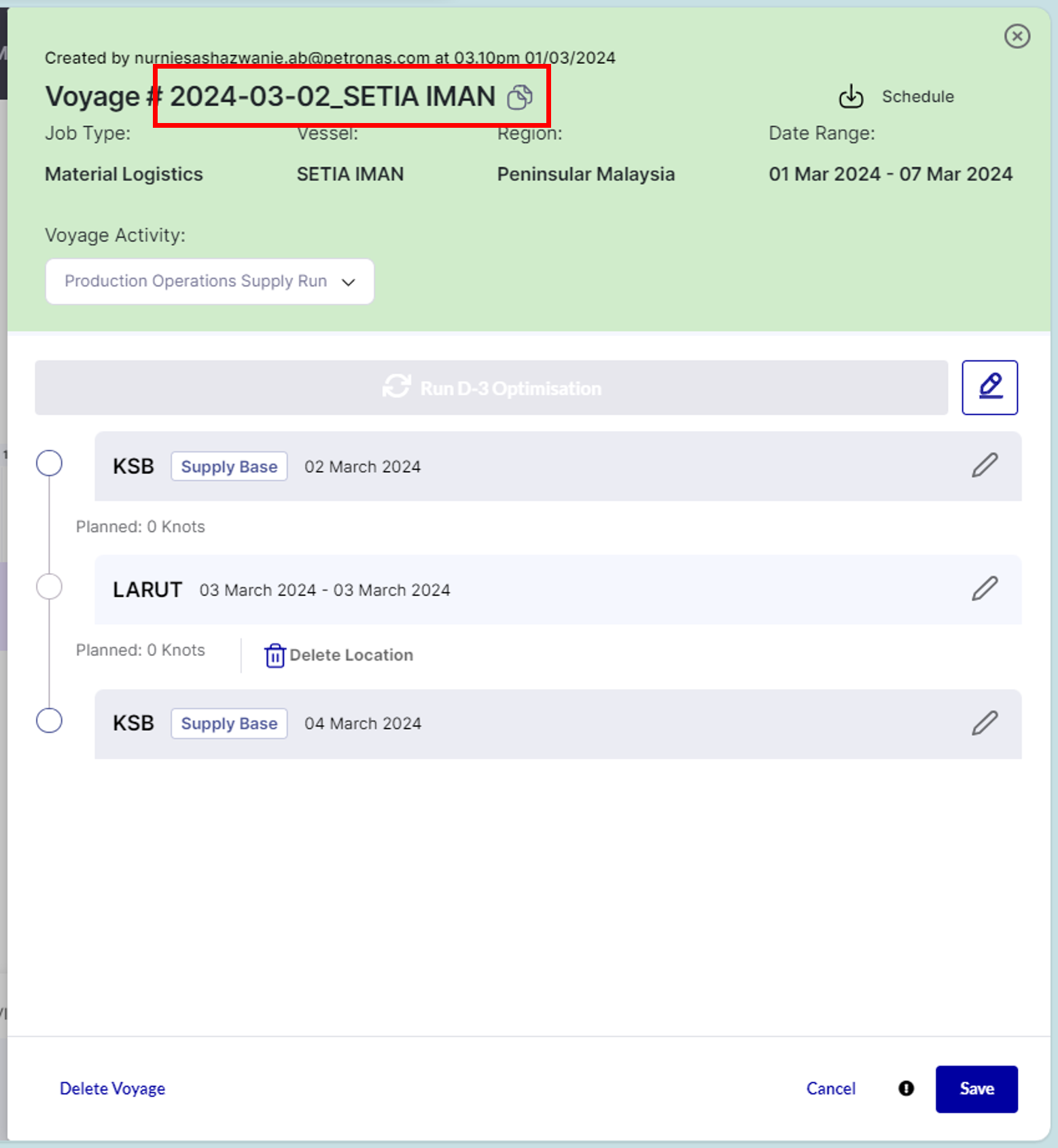
Important Notes:
- Voyage Route is based on the planned sequence in schedule planning.
- Compulsory to fill in for upper deck demand only: Width, Length, Height & Unit (WL), Est. Weight & Unit (Weight)
- Compulsory to fill in for under deck demand only: Volume, Unit (Volume)
- Optional to fill in – Passenger (PAX)
Step 3 – Upload Demand Fulfillment File
Go to Optimise > Create Vessel Schedule > choose File Type as “Demand Fulfillment” > upload completed DF file > click ‘Attach’ > click ‘Upload’.
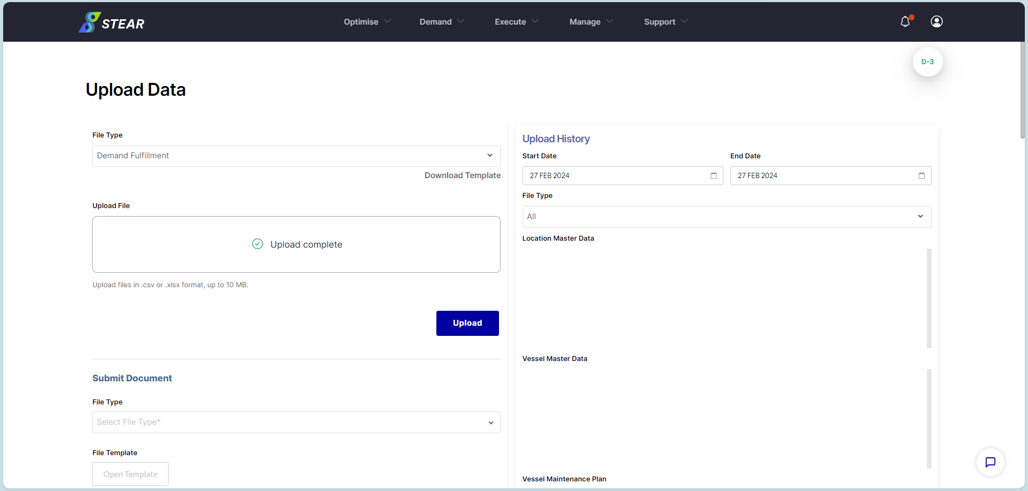
Step 4 – Choose Voyage For D-3 Optimisation
Once DF is already uploaded, go to Optimise > View Vessel Schedule > select Region and Date Range > click ‘Next’ > click on the voyage to be optimized.
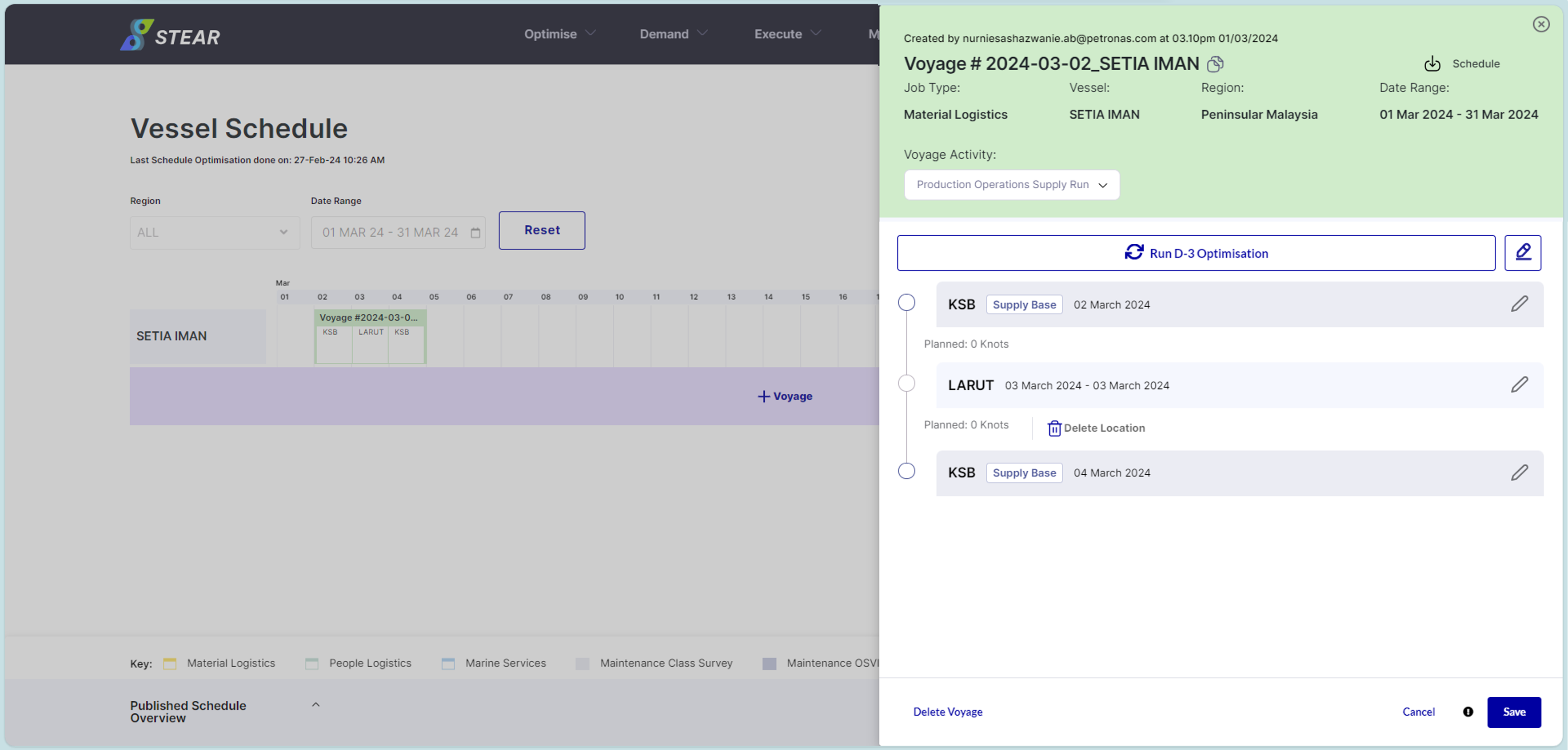
Step 5 – Edit Voyage’s Details
Click ‘pencil’ icon to set Departure Date, Departure Time and Location Prioritization.
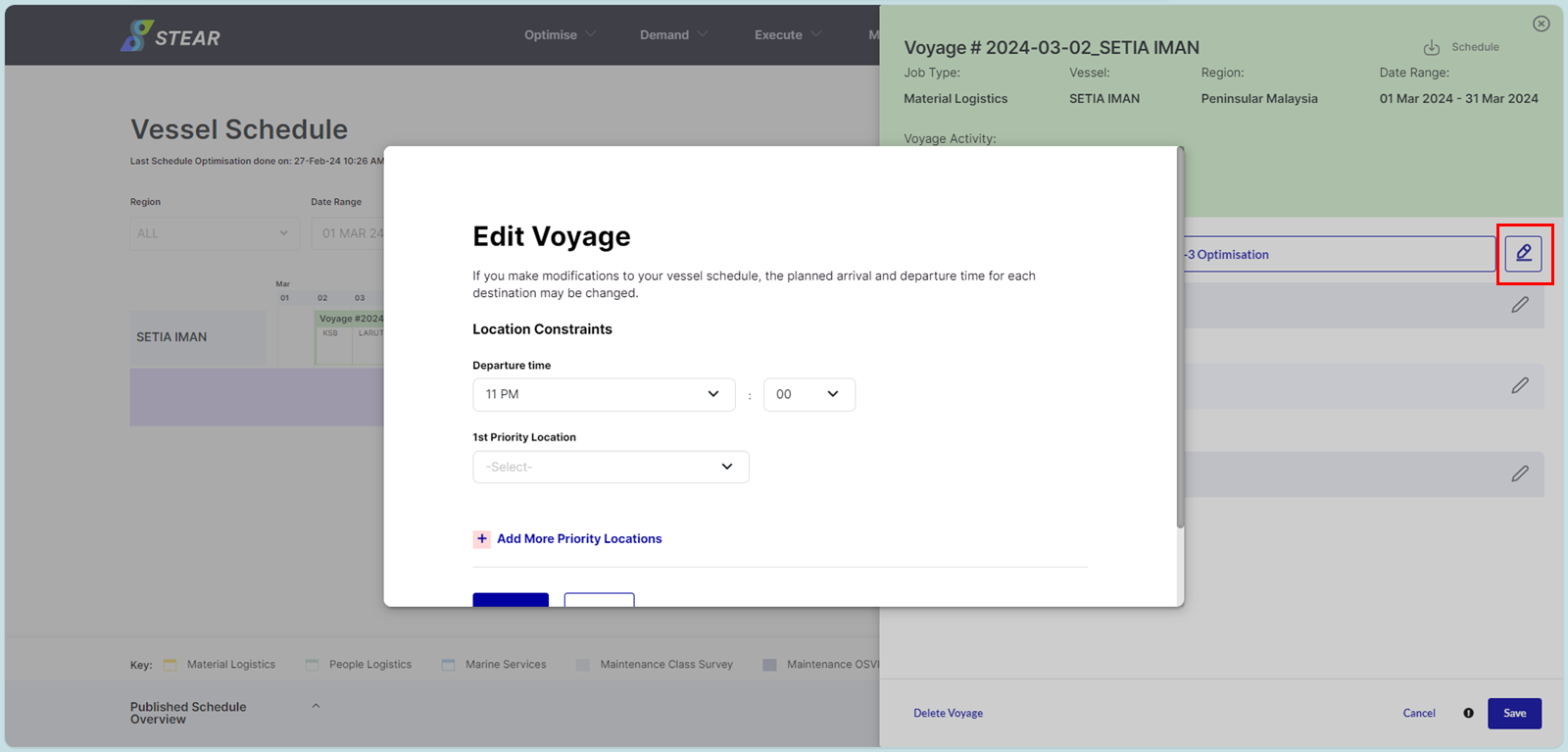
User can update departure date/time and up to two priority locations. Then, click ‘Confirm’.
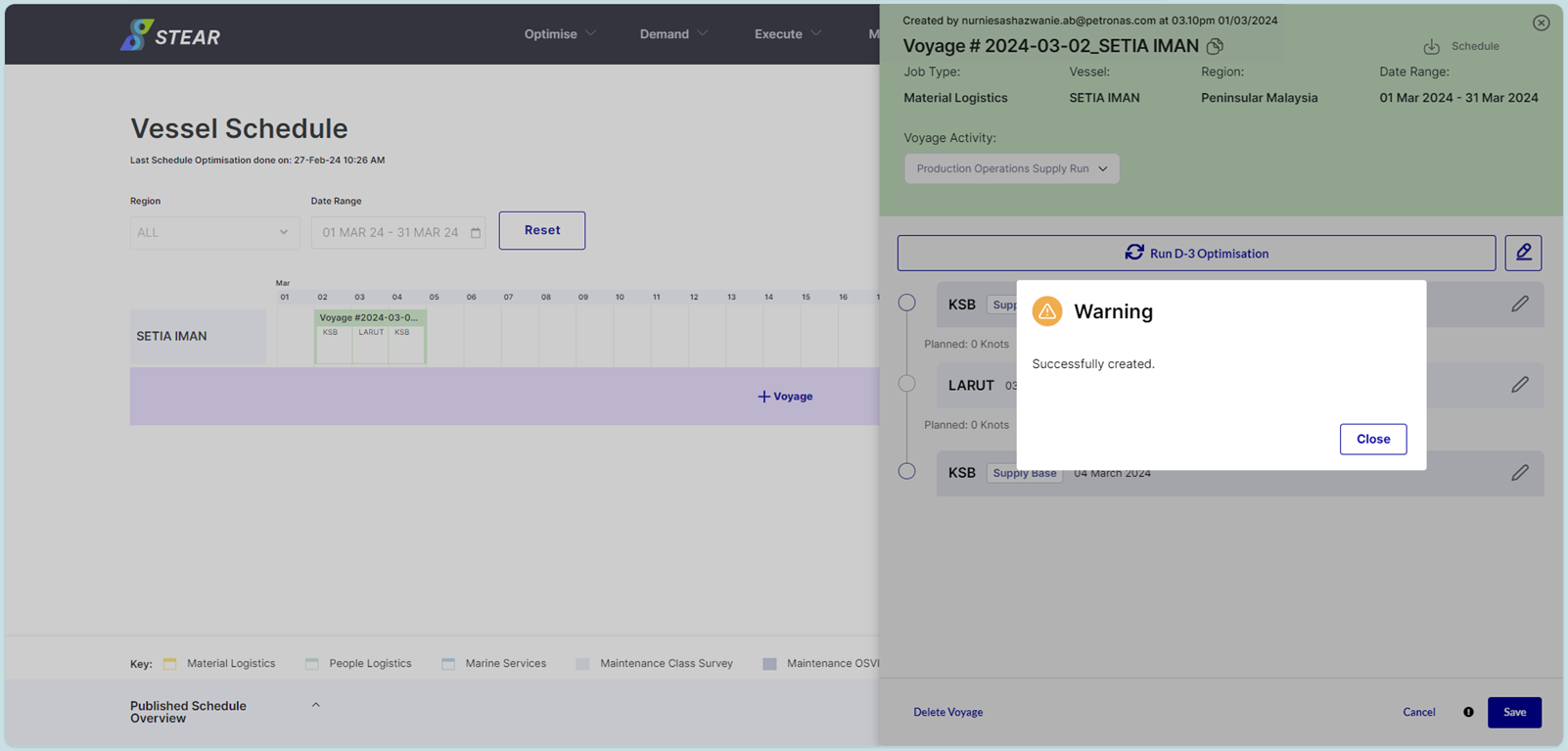
Step 6 – Run D-3 Optimisation
Click ‘Run D-3 Optimisation’. Process takes ~10–12 minutes. Notification appears when complete.
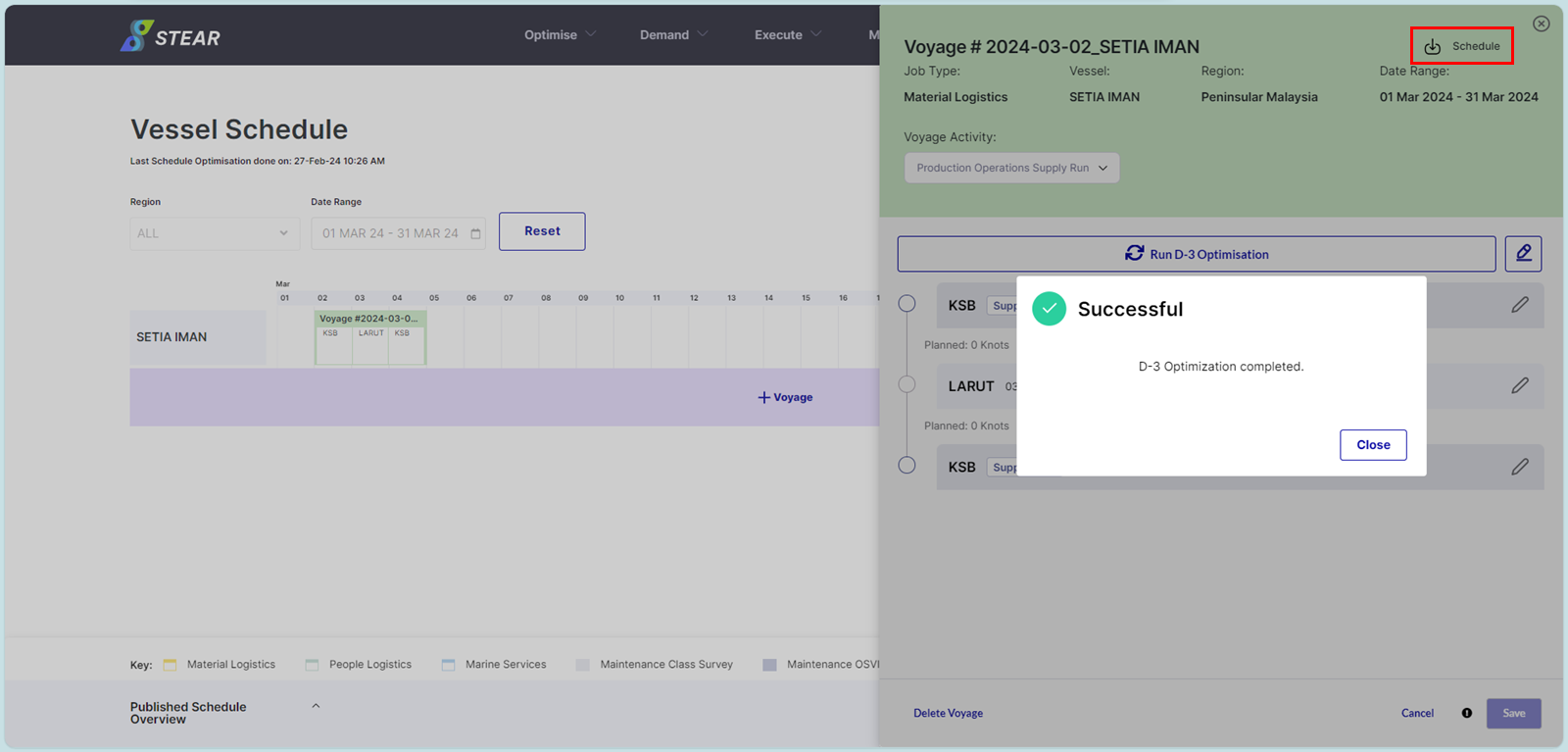
Step 7 – View Optimised Schedule in VVS
Select optimised voyage in VVS to see details of generated optimisation schedule.