
• Our Solutions
  • Contact Us
Schedule a Demo

Solutions

People Safety - HSE Suite

Connectivity - Volant

People Safety - HSE Suite

Connectivity - Volant

Commercial

3
  • Placeholder – Commercial
  • Placeholder – Commercial
  • [Placeholder] – Commercial

Contact Us

2
  • Tell us!
  • Tell us!

Danger Dodgers

3
  • Support
  • Specification for Danger Dodgers
  • Gameplay

E-Permit To Work (ePTW+)

5
  • What are the features available in ePTW+?
  • How do I update the ePTW user profile?
  • What are the features available in ePTW+?
  • How do I update the ePTW user profile?
  • Where do I find guideline for ePTW+?

Getting Started

11
  • How to view the support ticket?
  • How to request for VOLANT Demo?
  • How to register to Customer Portal?
  • How to file a support request ticket?
  • How do I clear browser cache and cookies in my browser?
  • How to view the support ticket?
  • How to request for VOLANT Demo?
  • How to register to Customer Portal?
  • How to file a support request ticket?
  • How do I clear browser cache and cookies in my browser?
  • How do I clear browser cache and cookies in my browser

IntAI

2
  • General FAQ on IntAI
  • General FAQ on IntAI

Marketing

3
  • Placeholder – Marketing
  • Placeholder – Marketing
  • [Placeholder] – Marketing

OSIS

5
  • What is the benefit of OSIS?
  • What are OSIS key integrations?
  • What is the benefit of OSIS?
  • What are OSIS key integrations?
  • What are OSIS key features?

Sales

3
  • Placeholder – Sales
  • Placeholder – Sales
  • [Placeholder] – Sales

SENTINEL

6
  • How to Use Map and Navigation Features
  • How to Request Technical Support
  • How to Navigate SENTINEL Dashboard
  • How is the flow of Alert System
  • How Do I Use Advanced Search and Pagination
  • How Can I Download the User Manual

STEAR

46
  • Will the backbone schedule be updated after you made your reservation in STEAR?
  • Why should you use STEAR to make your reservation?
  • Who makes reservation for loose stock items and empty containers?
  • What is the purpose of the leadership dashboard?
  • What is the purpose of STEAR?
  • What is Tenant Admin Portal?
  • Is there a cut-off time for reservation in STEAR?
  • How will the voyage route be optimized?
  • How to view KPI Dashboard in STEAR Platform+?
  • How to track vessel or voyage in STEAR Platform+ ?
  • How to request STEAR Demo?
  • How to navigate to the Tenant Admin Portal?
  • How to access to the Tenant Admin Portal?
  • How can I add or remove users from our company’s account?
  • D-30 Schedule Generation
  • D-30 / D-7 Schedule Generation
  • D-3 Schedule Optimisation (Demand Fulfilment)
  • D-3 Schedule Optimisation (Demand Data)
  • Will the backbone schedule be updated after you made your reservation in STEAR?
  • Why should you use STEAR to make your reservation?
  • Who makes reservation for loose stock items and empty containers?
  • What is the purpose of the leadership dashboard?
  • What is the purpose of STEAR?
  • What is Tenant Admin Portal?
  • Is there a cut-off time for reservation in STEAR?
  • How will the voyage route be optimized?
  • How to view KPI Dashboard in STEAR Platform+?
  • How to track vessel or voyage in STEAR Platform+ ?
  • How to request STEAR Demo?
  • How to navigate to the Tenant Admin Portal?
  • How to access to the Tenant Admin Portal?
  • How can I add or remove users from our company’s account?
  • D-3 Schedule Optimisation (error)
  • Is there a mobile app available for the product?
  • Is the Schedule Download Feature Available in STEAR?
  • I’m having trouble navigating the platform. Where can I find guides?
  • I see a blank white screen after logged in. What should I do?
  • I forgot my password. How can I reset it?
  • I encountered an error message. What should I do?
  • I am unable to log in to the system. What should I do?
  • How to troubleshoot vessel not appearing in the Map?
  • How do I update my roles/position?
  • How can I upgrade my subscription plan?
  • How can I provide feedback or report a bug about the product?
  • D-3 Schedule Optimisation
  • Are there specific browser requirements for using the platform?

Support

12
  • Service Level Agreement (SLA)
  • Service Level Agreement
  • Intake Management
  • How do a customer get onboarded to Virtus product?
  • Crafting and Publishing Articles in Knowledge Base
  • Service Level Agreement (SLA)
  • Service Level Agreement
  • Intake Management
  • How do a customer get onboarded to Virtus product?
  • How do a customer get onboarded to Virtus product?
  • Service Level Agreement (SLA)
  • Intake Management

Unsafe Act Unsafe Condition (UAUC)

6
  • HSSE UAUC Website Login
  • HSSE UAUC Mobile App
  • How to report an UAUC?
  • HSSE UAUC Website Login
  • HSSE UAUC Mobile App
  • How to report an UAUC?

VOLANT

14
  • What is Volant?
  • Volant Technical
  • Volant in glance
  • Volant Frequently Asked Questions (Technical)
  • Volant Frequently Asked Questions (General)
  • What is Volant?
  • Volant Technical
  • Volant in glance
  • Volant Frequently Asked Questions (Technical)
  • Volant Frequently Asked Questions (General)
  • VOLANT x University Deployment
  • VOLANT Success Story at Offshore Connectivity
  • VOLANT in Mesh Configuration
  • VOLANT Channel Bonding
View Categories
  • Home
  • Virtus IP Knowledge Base
  • STEAR
  • D-3 Schedule Optimisation (Demand Fulfilment)

D-3 Schedule Optimisation (Demand Fulfilment)

2 min read

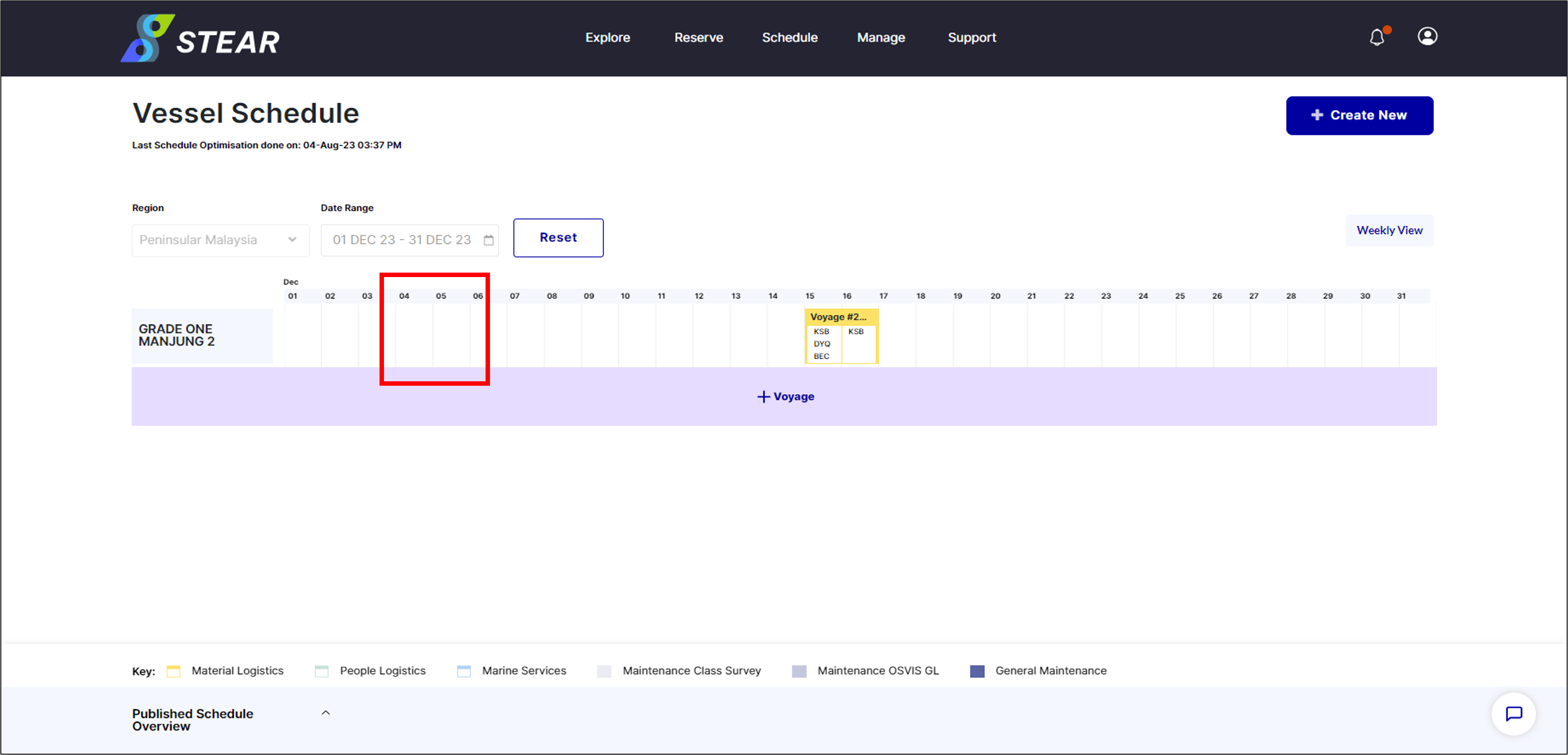
Step 1 – Select a Voyage to Optimise

Go to Schedule > View Schedule Page > Select Region and Date Range > click Next > click on the voyage to be optimised.
Picture21

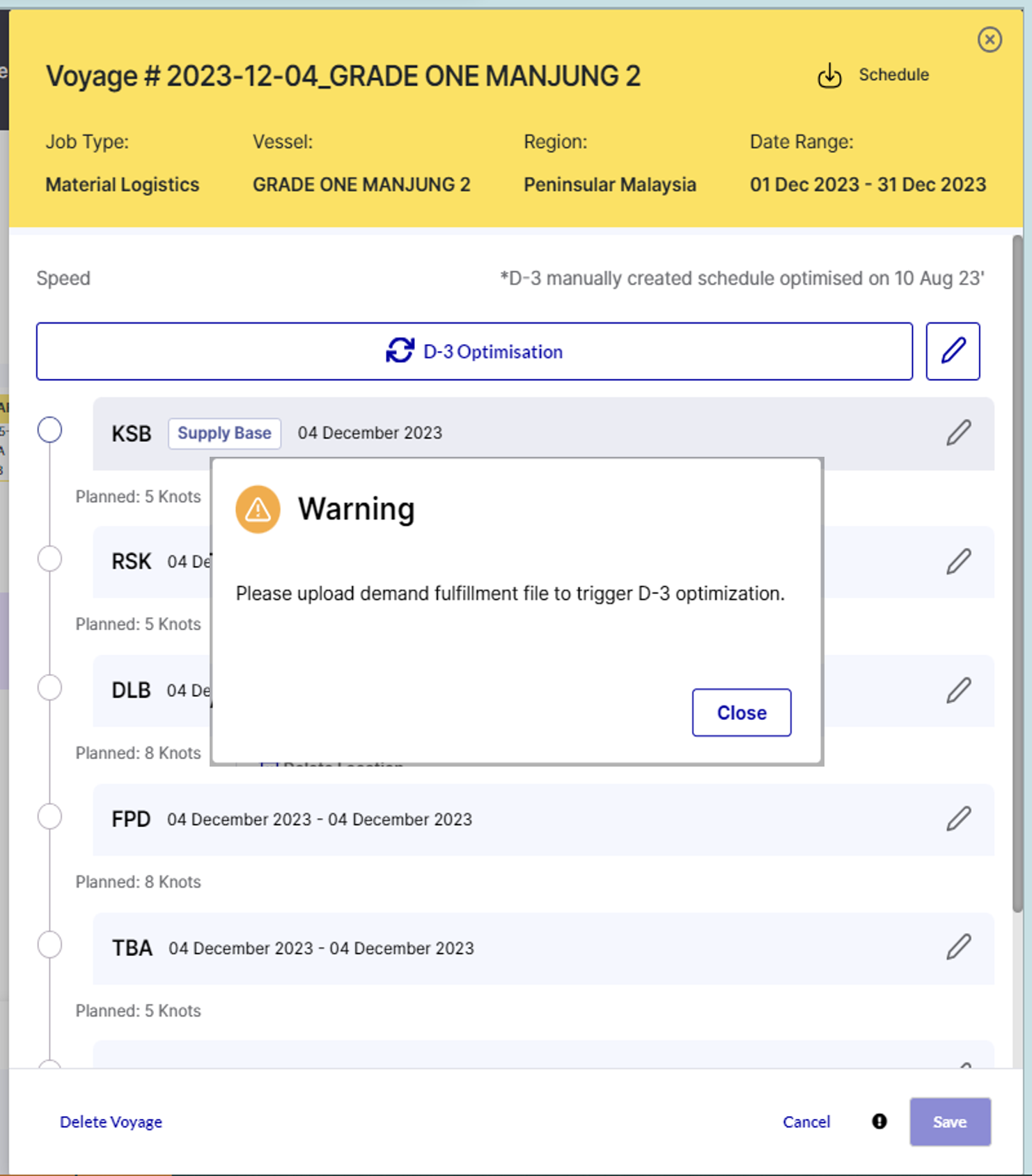
Step 2 – Run D-3 Optimisation

To trigger D-3 optimization on the selected voyage, you will be prompted to upload Demand Fulfilment (DF).

Click ‘Close’ > Click ‘Save’.
Picture23

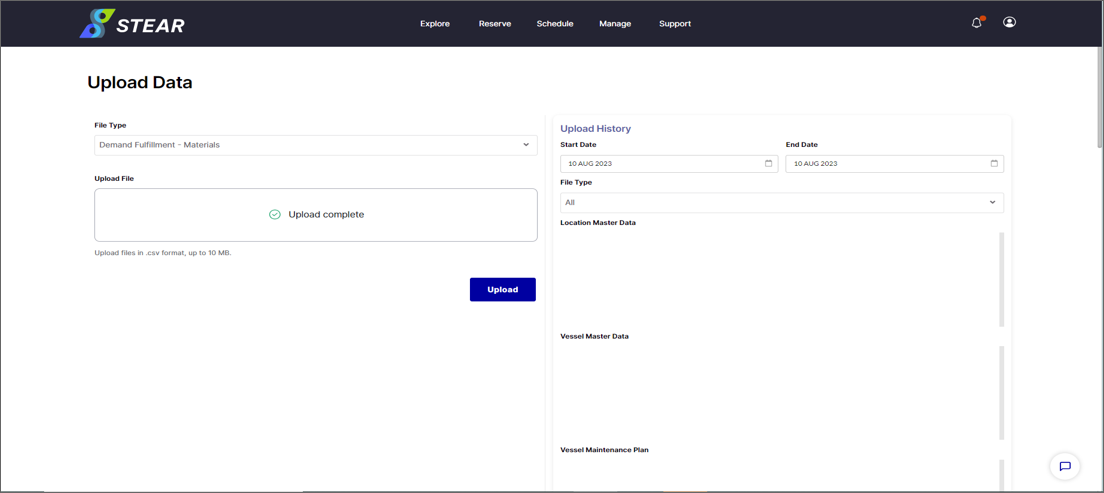
Step 3 – Upload Demand Fulfillment (DF)
*Will be uploaded by STEAR Team
Schedule > Upload Data > choose File Type as ‘Demand Fulfillment – Materials’ > browse or drag Demand Fulfillment file. Click ‘Upload’.
Picture24
Cont. Data Processing:

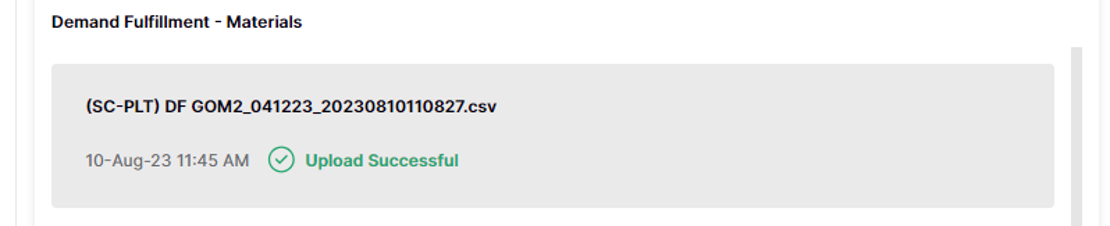
Uploading and data processing will take around 5 to 20 minutes (depend on data size).

Scroll down to Demand Fulfilment – Materials, once it’s ready ‘Upload Successful’ notification will appear.
Picture25

Step 4 – Run D-3 Optimisation

Schedule > View Vessel Schedule (VVS). Select the voyage with the same Trip ID in step 1.
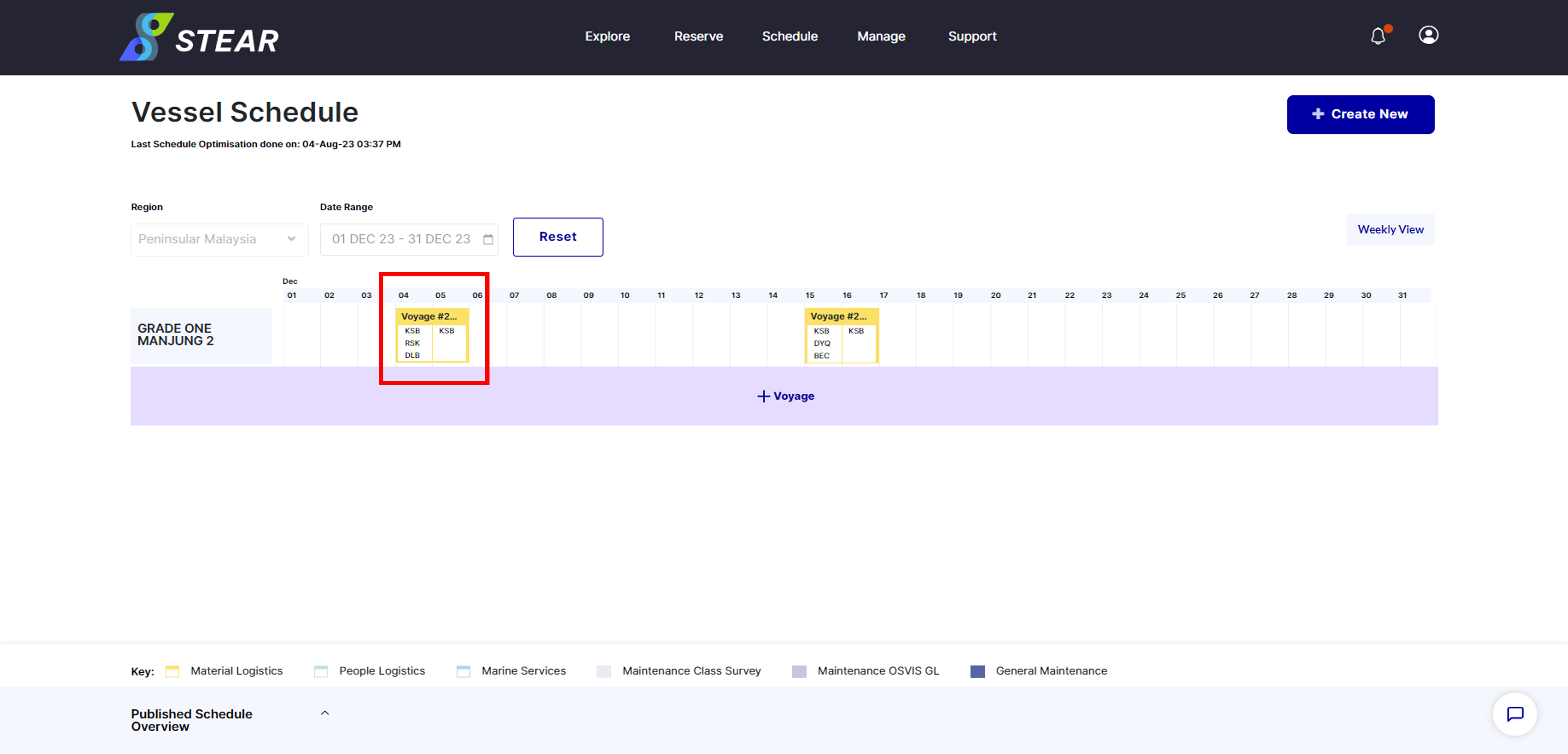
Picture27

Step 5 – Edit Voyage’s Details

Click ‘pencil’ icon to assign the departure time and optionally user can add up to 2 priority locations, if any. Click ‘Confirm’ > click ‘D-3 Optimisation’.
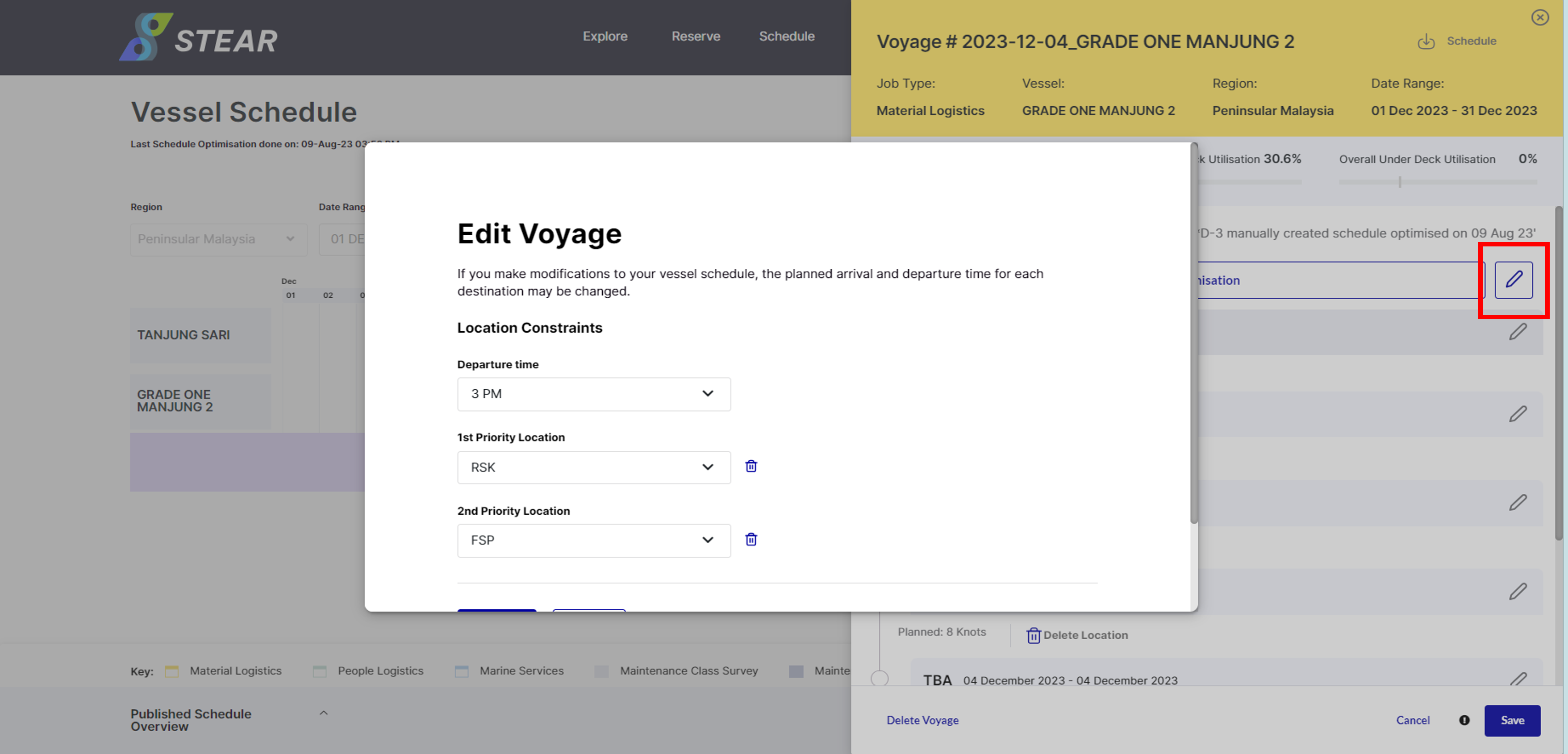
Picture28

Step 6 – Run D-3 Optimisation

Click ‘D-3 Optimisation’ button.
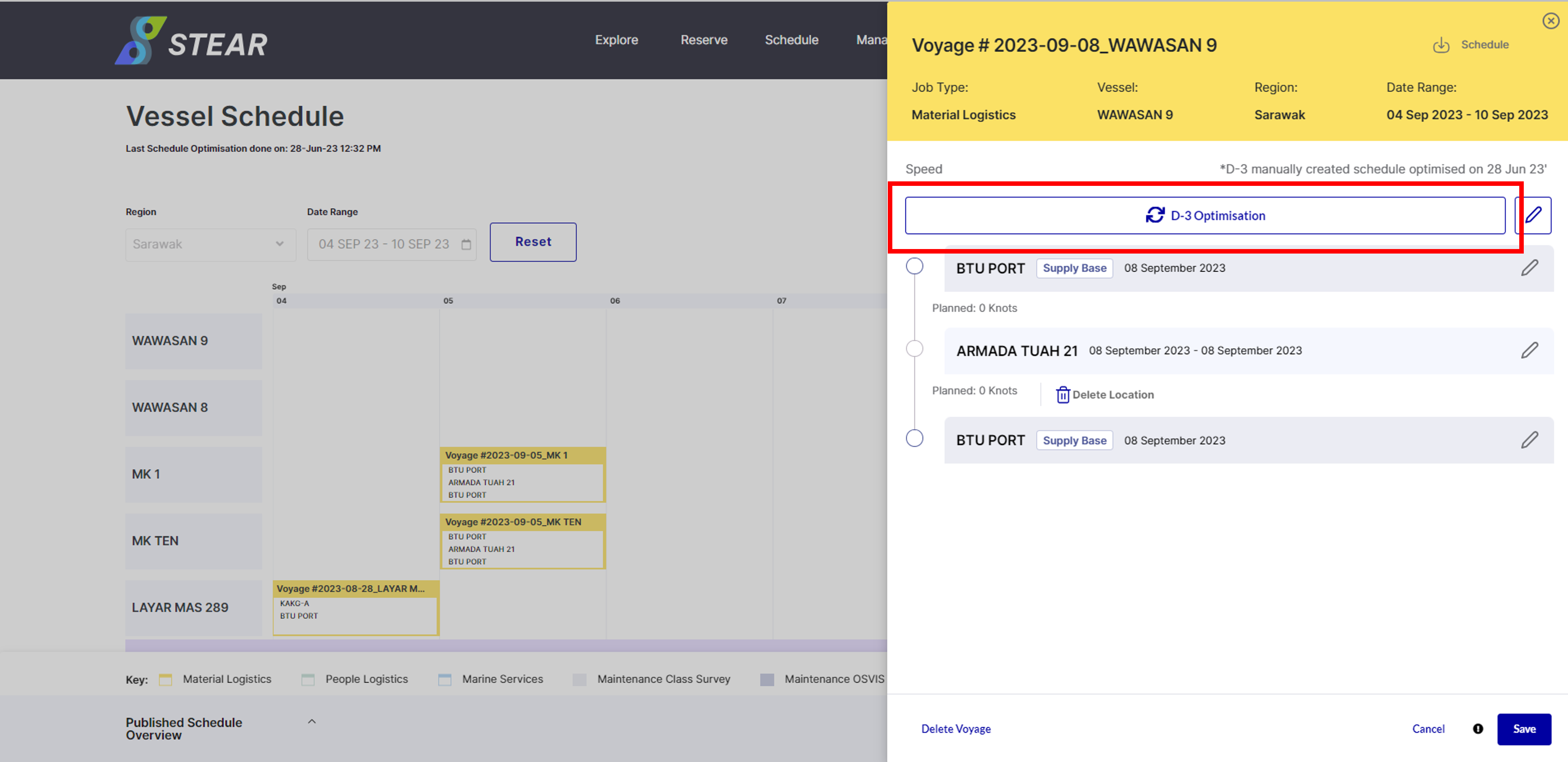
Picture29
(Continue) D-3 Optimisation:

The Optimisation process will take around 30 minutes. The successful notification will appear once it’s complete.
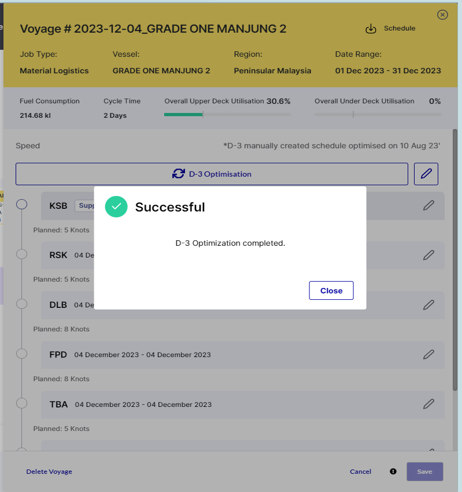
Picture30

Step 7 – Optimised Schedule in STEAR (VVS)

Successful published schedule can be view in Schedule > View Vessel Schedule (VVS).
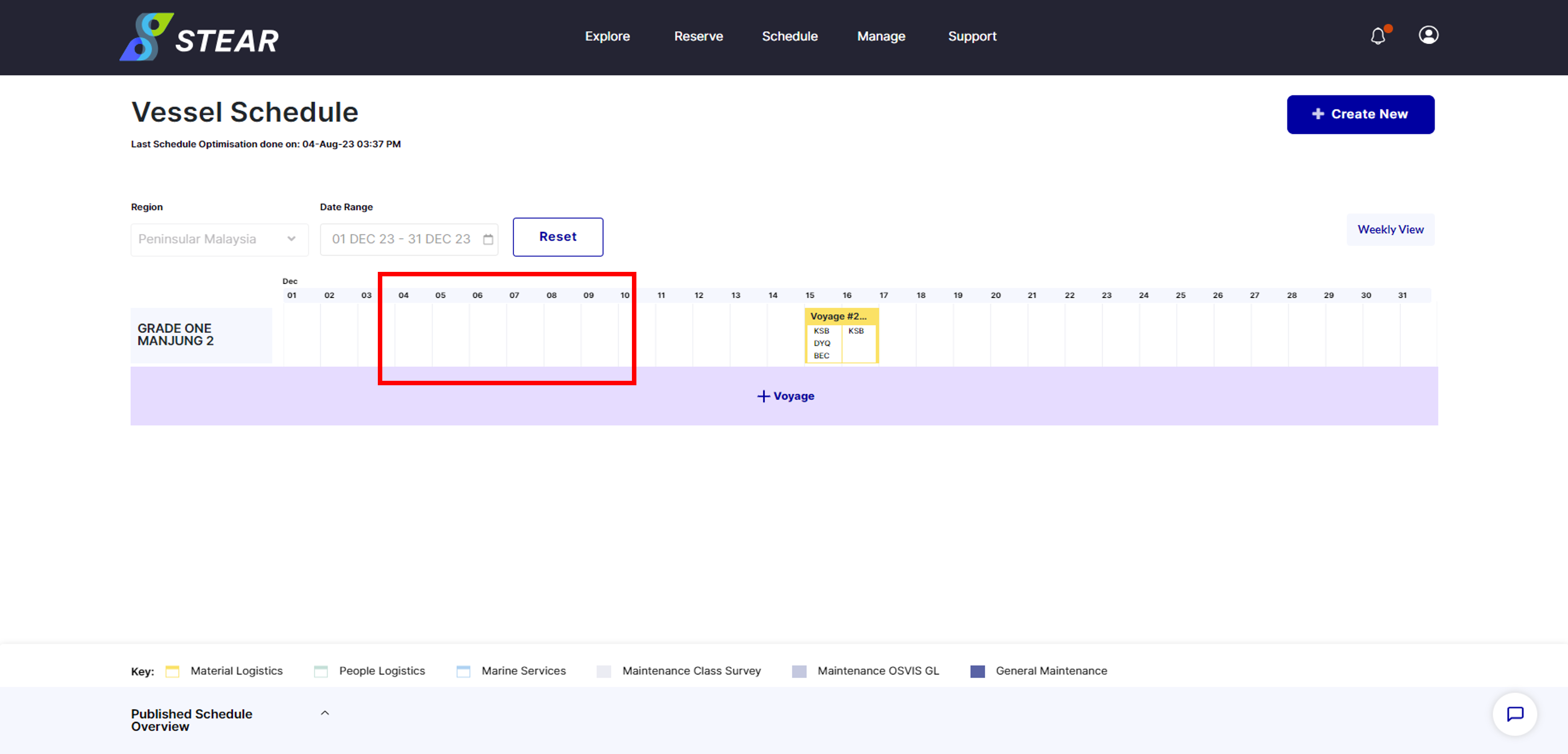
Picture31

Step 8 – Optimised Schedule in PLT (Plan & Action)

Successful published schedule can be view in PLT > Marine > Plan or Action.
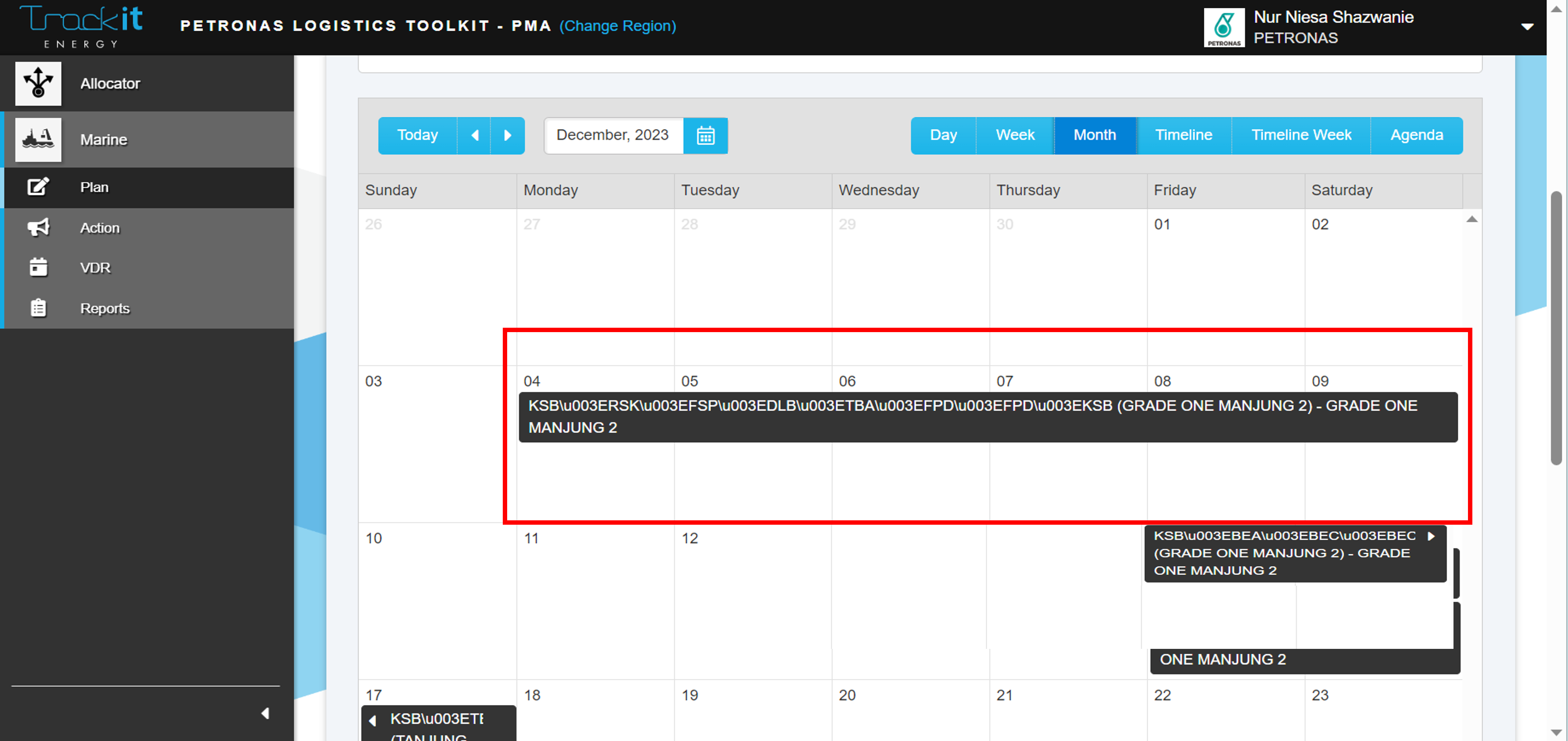
Picture33

Step 9 – Review Schedule Changes

Upon selecting the voyage in VVS, system will notify you that the optimized schedule have been reflected to both VVS and PLT. Click ‘Review’ to compare the original and optimized schedule.
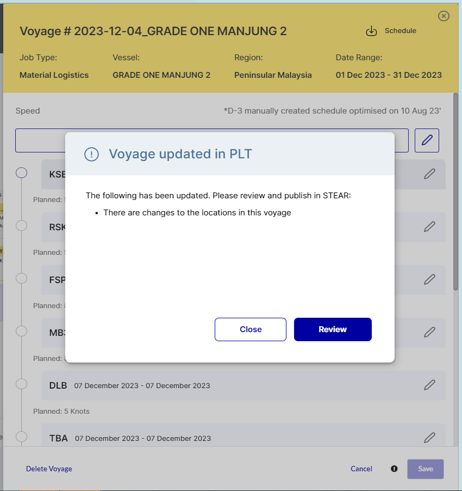
Picture34

Step 10 – Details of Optimised Schedule

Difference between original and updated schedule is viewed here. Click ‘Back’ to exit this view.
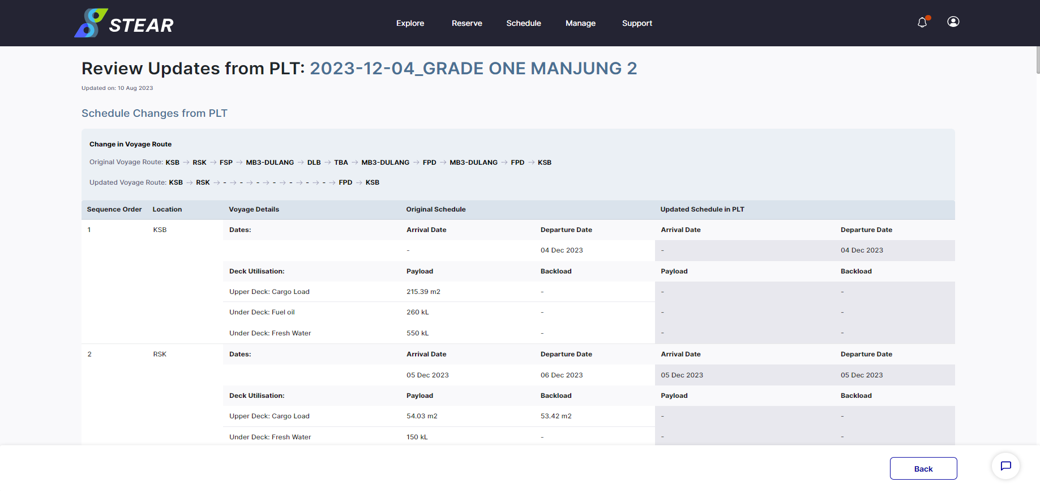
Picture35

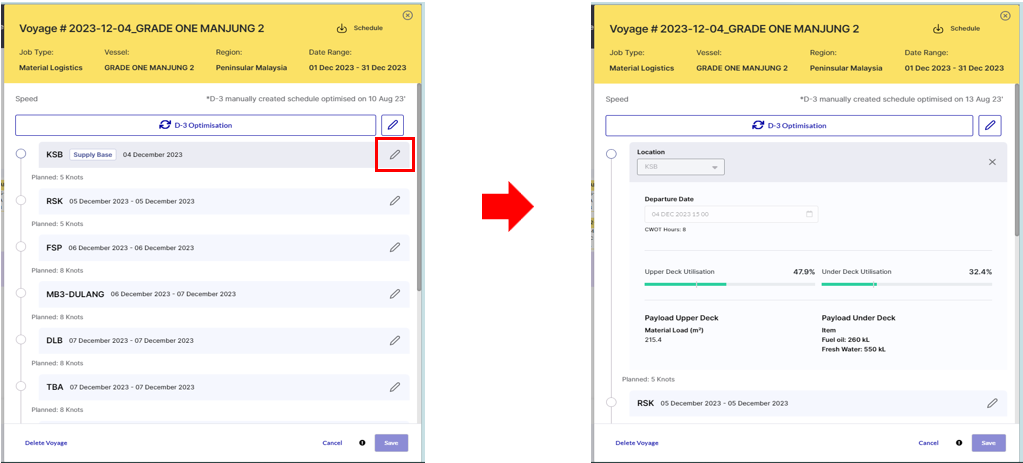
Step 11 – Details of Optimised Schedule

To know details of deck utilization and demand allocated, click ‘pencil’ icon to expand the details.
Screenshot 2024-03-18 111121

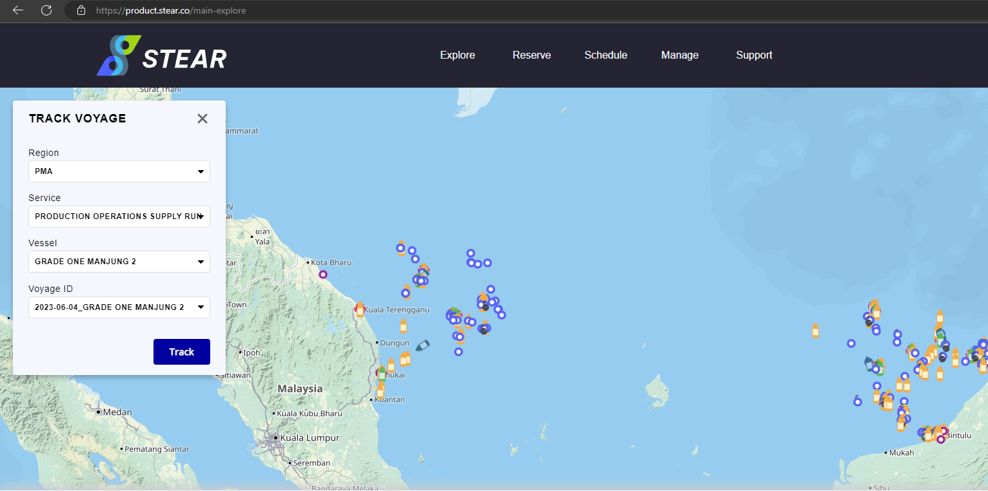
Step 12 – View Voyage Schedule in Execute

To view, go to Execute > Track Vessel > Track a Voyage > select Region, Service, Vessel and Voyage ID > click Track > click Current Schedule.
Picture36
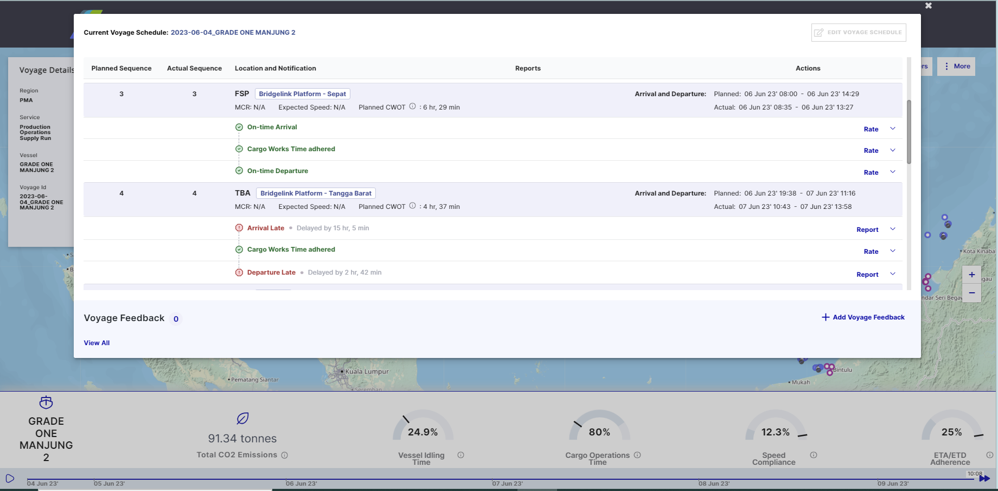
(Continue) Optimised Schedule in Execute:

At D-0, optimised schedule will be push to Execute Module tracking page. To view, go to Execute > Track Vessel > Track a Voyage > select Region, Service, Vessel and Voyage ID > click Track > click Current Schedule.
Picture37


Updated on September 23, 2025

What are your Feelings

  • Happy
  • Normal
  • Sad

Share This Article :

  • Facebook
  • X
  • LinkedIn
  • Pinterest

Leave a Reply Cancel reply

Your email address will not be published. Required fields are marked *

Quick Links

Contact Us
Privacy Policy

Our Location

Virtus IP Sdn Bhd,
Level 17, PETRONAS Tower 3,
Kuala Lumpur City Centre,
50088 Kuala Lumpur

Let’s Connect

VIRTUS

support@virtus-ip.com

Quick Links

Contact Us
Privacy Policy

Our Location

Virtus IP Sdn Bhd, Level 17,
PETRONAS Tower 3,
Kuala Lumpur City Centre,
50088 Kuala Lumpur

Let’s Connect

VIRTUS

support@virtus-ip.com

© 2025 VIRTUS. All Rights Reserved.