• Our Solutions
  • Contact Us
Schedule a Demo

Solutions

People Safety - HSE Suite

Connectivity - Volant

People Safety - HSE Suite

Connectivity - Volant

Commercial

3
  • Placeholder – Commercial
  • Placeholder – Commercial
  • [Placeholder] – Commercial

Contact Us

2
  • Tell us!
  • Tell us!

Danger Dodgers

3
  • Support
  • Specification for Danger Dodgers
  • Gameplay

E-Permit To Work (ePTW+)

5
  • What are the features available in ePTW+?
  • How do I update the ePTW user profile?
  • What are the features available in ePTW+?
  • How do I update the ePTW user profile?
  • Where do I find guideline for ePTW+?

Getting Started

11
  • How to view the support ticket?
  • How to request for VOLANT Demo?
  • How to register to Customer Portal?
  • How to file a support request ticket?
  • How do I clear browser cache and cookies in my browser?
  • How to view the support ticket?
  • How to request for VOLANT Demo?
  • How to register to Customer Portal?
  • How to file a support request ticket?
  • How do I clear browser cache and cookies in my browser?
  • How do I clear browser cache and cookies in my browser

IntAI

2
  • General FAQ on IntAI
  • General FAQ on IntAI

Marketing

3
  • Placeholder – Marketing
  • Placeholder – Marketing
  • [Placeholder] – Marketing

OSIS

5
  • What is the benefit of OSIS?
  • What are OSIS key integrations?
  • What is the benefit of OSIS?
  • What are OSIS key integrations?
  • What are OSIS key features?

Sales

3
  • Placeholder – Sales
  • Placeholder – Sales
  • [Placeholder] – Sales

SENTINEL

6
  • How to Use Map and Navigation Features
  • How to Request Technical Support
  • How to Navigate SENTINEL Dashboard
  • How is the flow of Alert System
  • How Do I Use Advanced Search and Pagination
  • How Can I Download the User Manual

STEAR

46
  • Will the backbone schedule be updated after you made your reservation in STEAR?
  • Why should you use STEAR to make your reservation?
  • Who makes reservation for loose stock items and empty containers?
  • What is the purpose of the leadership dashboard?
  • What is the purpose of STEAR?
  • What is Tenant Admin Portal?
  • Is there a cut-off time for reservation in STEAR?
  • How will the voyage route be optimized?
  • How to view KPI Dashboard in STEAR Platform+?
  • How to track vessel or voyage in STEAR Platform+ ?
  • How to request STEAR Demo?
  • How to navigate to the Tenant Admin Portal?
  • How to access to the Tenant Admin Portal?
  • How can I add or remove users from our company’s account?
  • D-30 Schedule Generation
  • D-30 / D-7 Schedule Generation
  • D-3 Schedule Optimisation (Demand Fulfilment)
  • D-3 Schedule Optimisation (Demand Data)
  • Will the backbone schedule be updated after you made your reservation in STEAR?
  • Why should you use STEAR to make your reservation?
  • Who makes reservation for loose stock items and empty containers?
  • What is the purpose of the leadership dashboard?
  • What is the purpose of STEAR?
  • What is Tenant Admin Portal?
  • Is there a cut-off time for reservation in STEAR?
  • How will the voyage route be optimized?
  • How to view KPI Dashboard in STEAR Platform+?
  • How to track vessel or voyage in STEAR Platform+ ?
  • How to request STEAR Demo?
  • How to navigate to the Tenant Admin Portal?
  • How to access to the Tenant Admin Portal?
  • How can I add or remove users from our company’s account?
  • D-3 Schedule Optimisation (error)
  • Is there a mobile app available for the product?
  • Is the Schedule Download Feature Available in STEAR?
  • I’m having trouble navigating the platform. Where can I find guides?
  • I see a blank white screen after logged in. What should I do?
  • I forgot my password. How can I reset it?
  • I encountered an error message. What should I do?
  • I am unable to log in to the system. What should I do?
  • How to troubleshoot vessel not appearing in the Map?
  • How do I update my roles/position?
  • How can I upgrade my subscription plan?
  • How can I provide feedback or report a bug about the product?
  • D-3 Schedule Optimisation
  • Are there specific browser requirements for using the platform?

Support

12
  • Service Level Agreement (SLA)
  • Service Level Agreement
  • Intake Management
  • How do a customer get onboarded to Virtus product?
  • Crafting and Publishing Articles in Knowledge Base
  • Service Level Agreement (SLA)
  • Service Level Agreement
  • Intake Management
  • How do a customer get onboarded to Virtus product?
  • How do a customer get onboarded to Virtus product?
  • Service Level Agreement (SLA)
  • Intake Management

Unsafe Act Unsafe Condition (UAUC)

6
  • HSSE UAUC Website Login
  • HSSE UAUC Mobile App
  • How to report an UAUC?
  • HSSE UAUC Website Login
  • HSSE UAUC Mobile App
  • How to report an UAUC?

VOLANT

14
  • What is Volant?
  • Volant Technical
  • Volant in glance
  • Volant Frequently Asked Questions (Technical)
  • Volant Frequently Asked Questions (General)
  • What is Volant?
  • Volant Technical
  • Volant in glance
  • Volant Frequently Asked Questions (Technical)
  • Volant Frequently Asked Questions (General)
  • VOLANT x University Deployment
  • VOLANT Success Story at Offshore Connectivity
  • VOLANT in Mesh Configuration
  • VOLANT Channel Bonding
View Categories
  • Home
  • Virtus IP Knowledge Base
  • Getting Started
  • How to file a support request ticket?

How to file a support request ticket?

< 1 min read

OPTION 1

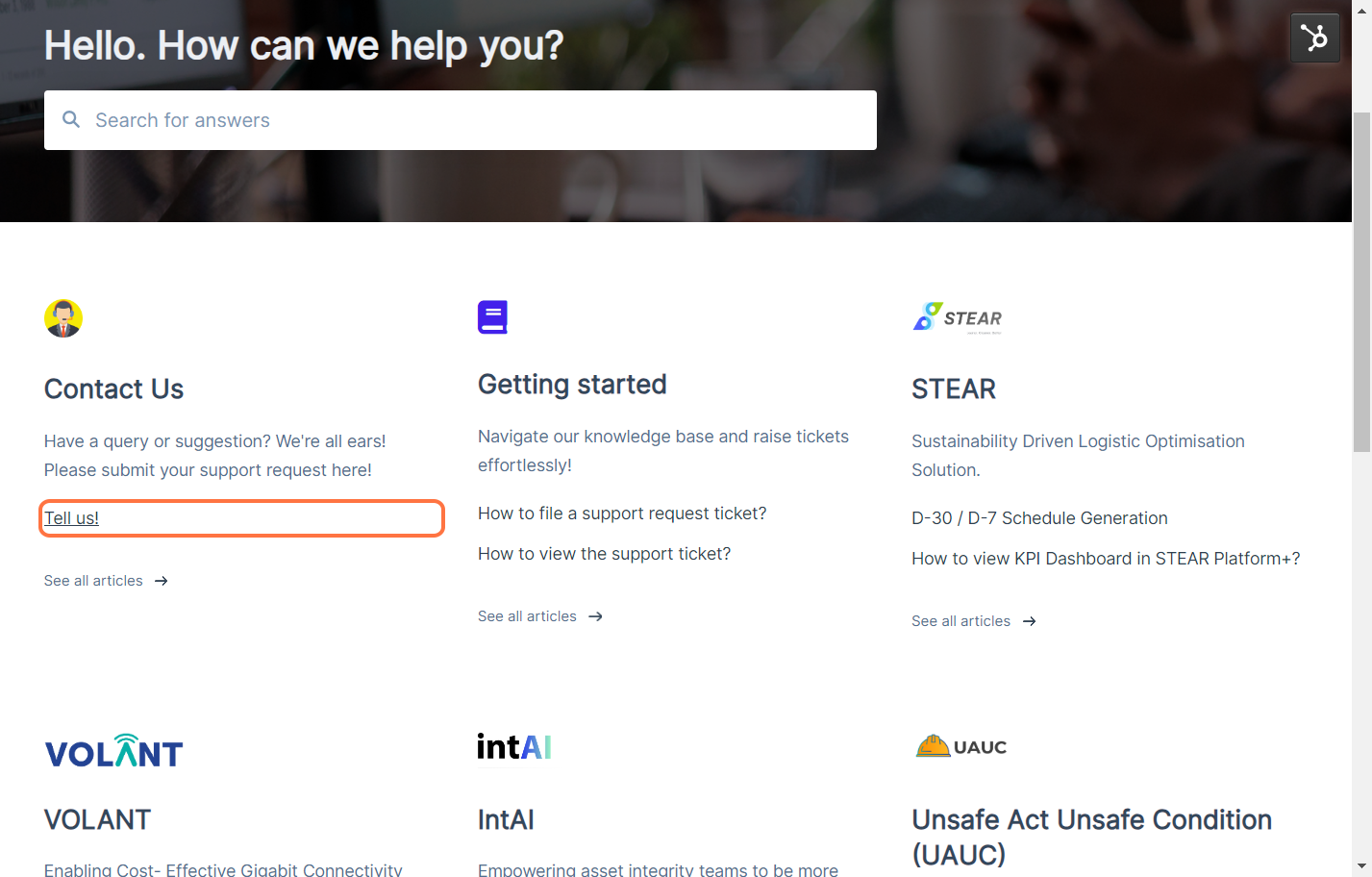
Step 1:

Go to Virtus Helpdesk.
25d2c841-6d9c-4dc2-9573-1c887c24f9af

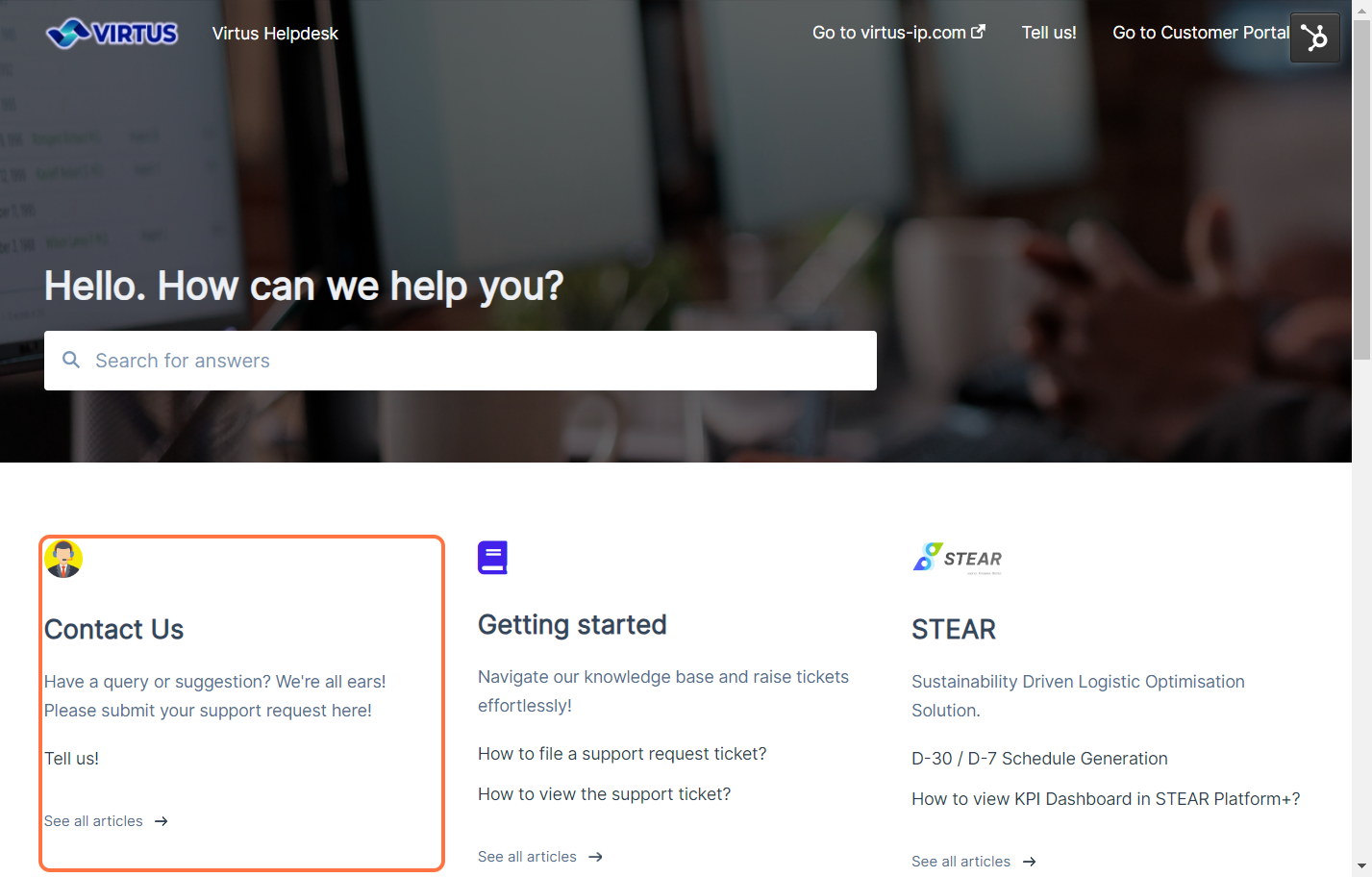
Step 2:

Click on Tell Us!

ea0f7666-25cd-4d26-aa5c-a6afcc225657

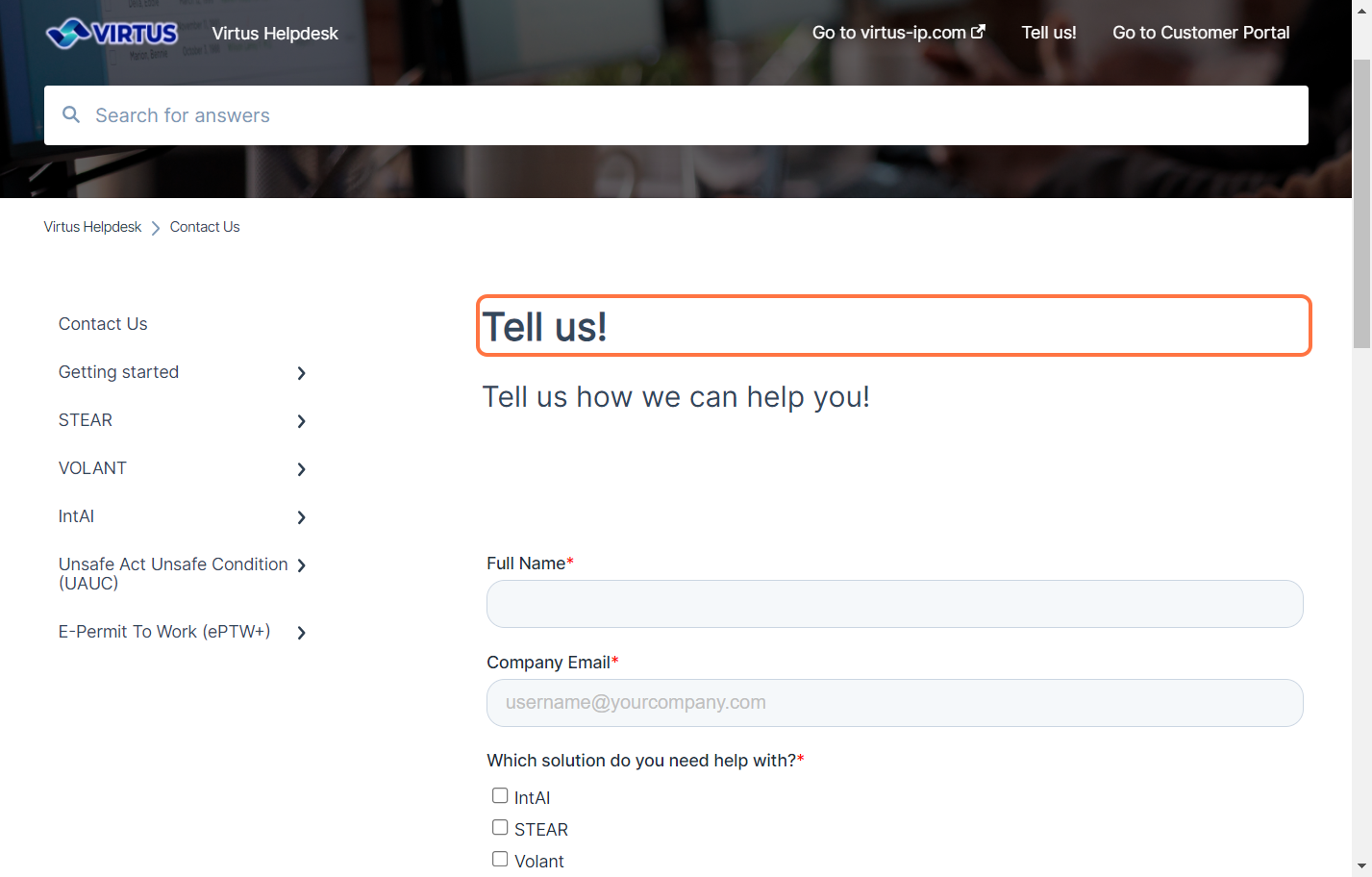
Step 3:

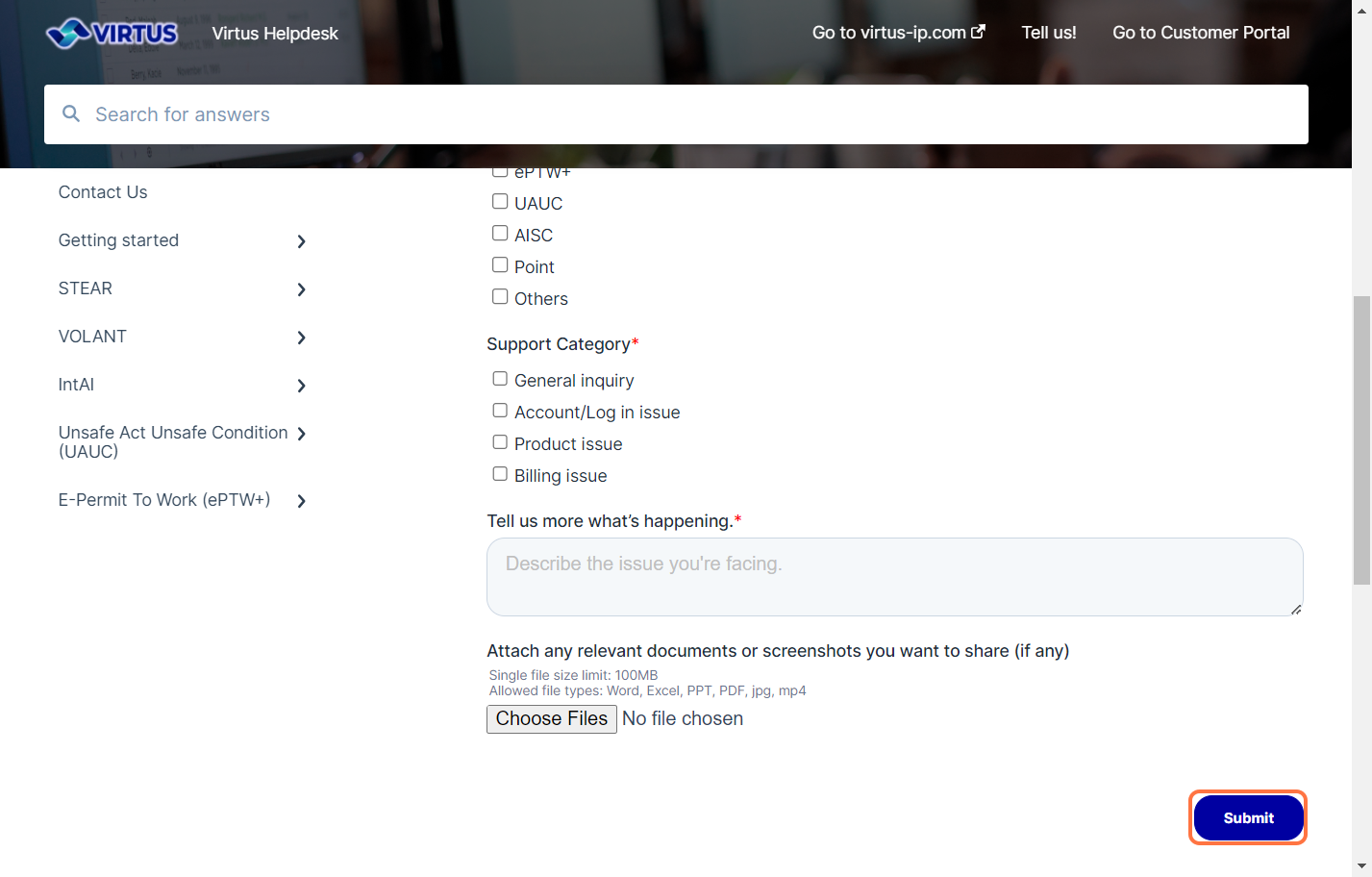
Fill in the form accordingly with relevant information and selection answers.
eb4fec41-f805-4a2b-9e7f-cd339dbcb33e

Step 4:

After provided with relevant information, click on Submit.  
Once you clicked submit, you will see a notification showing the ticket has been submitted.
d4d18b8d-093e-4ee7-aa52-c63dcfdc365b

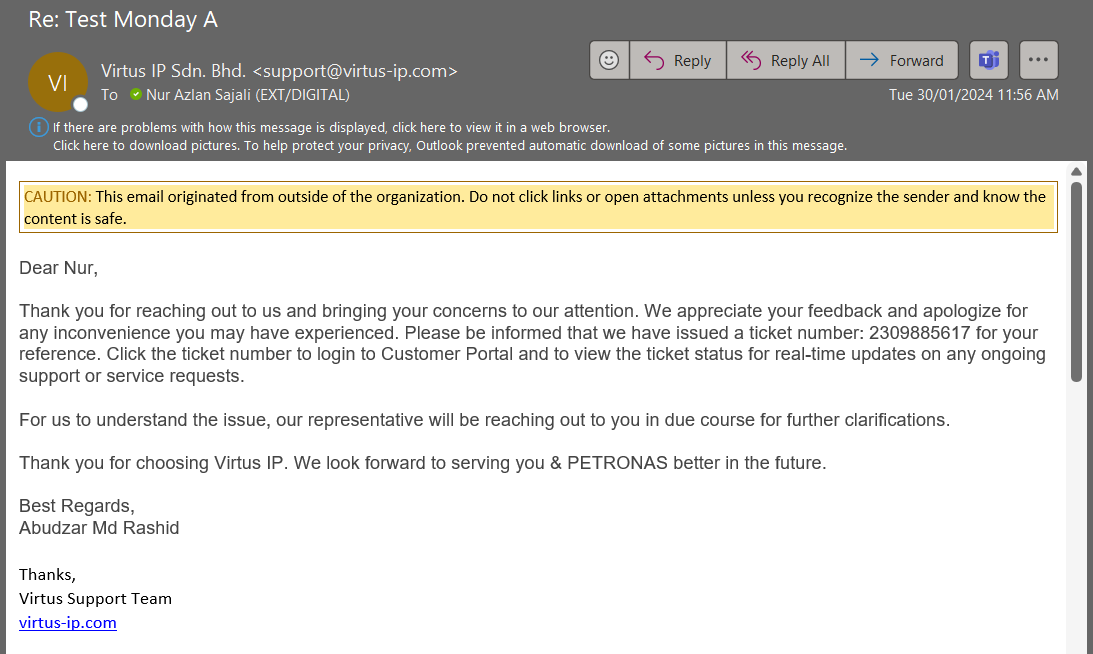
Notes:

You will receive an acknowledgement email from Virtus Helpdesk team.
Screenshot 2024-02-05 115511

OPTION 2

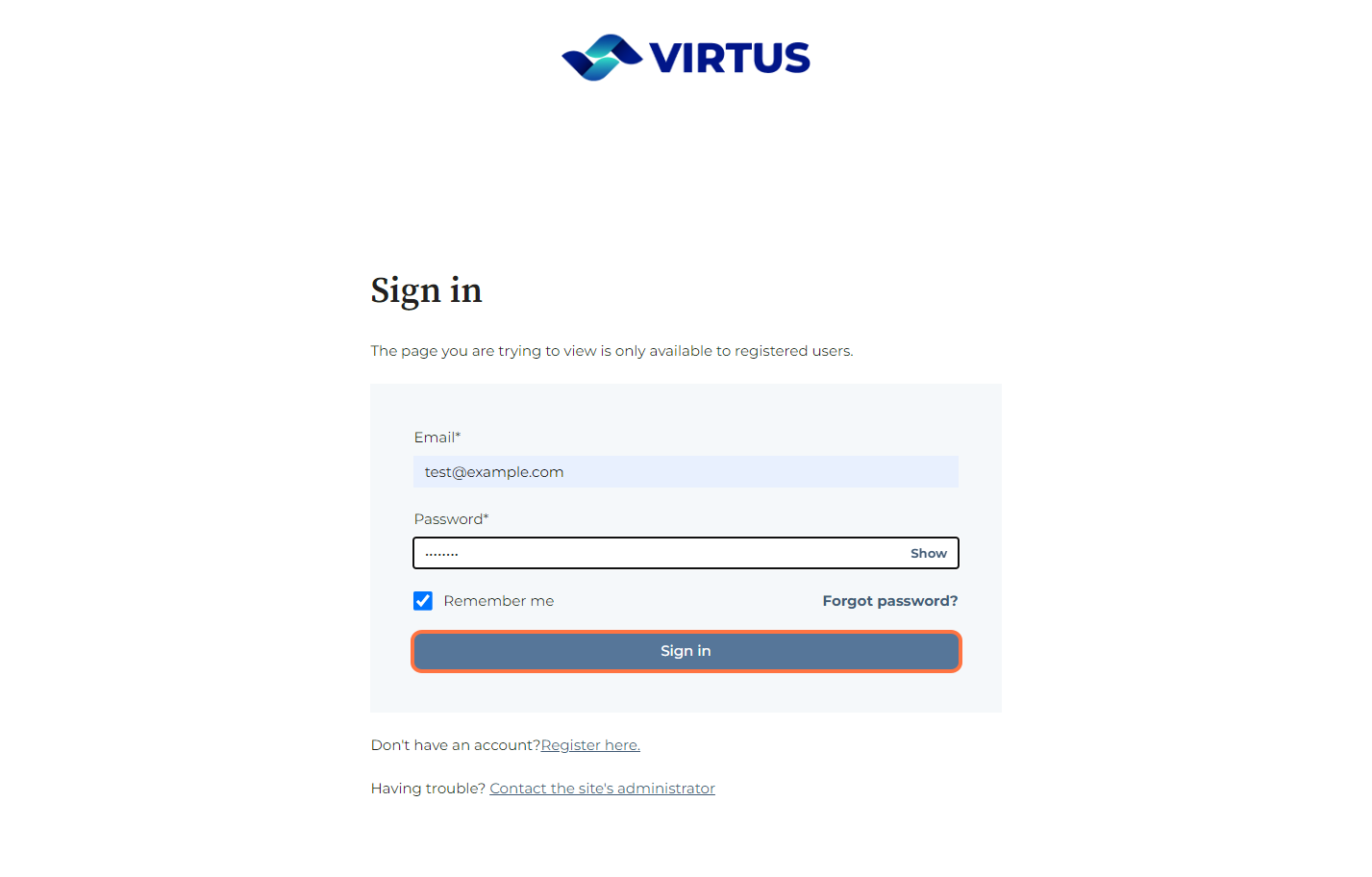
Step 1:

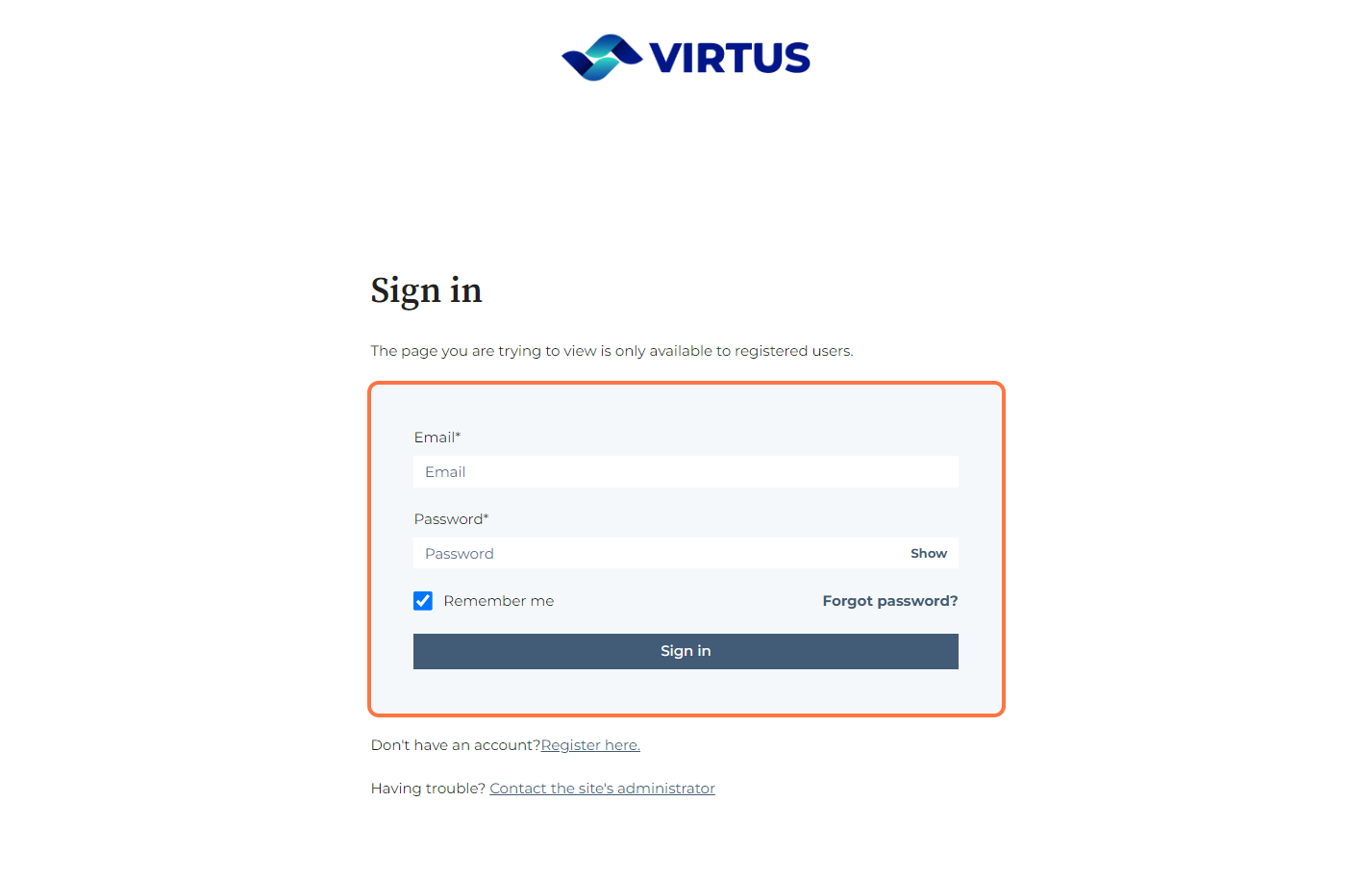
Sign in to Virtus Helpdesk.
Log in with your registered email and password.
Picture78

Step 2:

Click on Sign in.

Picture80

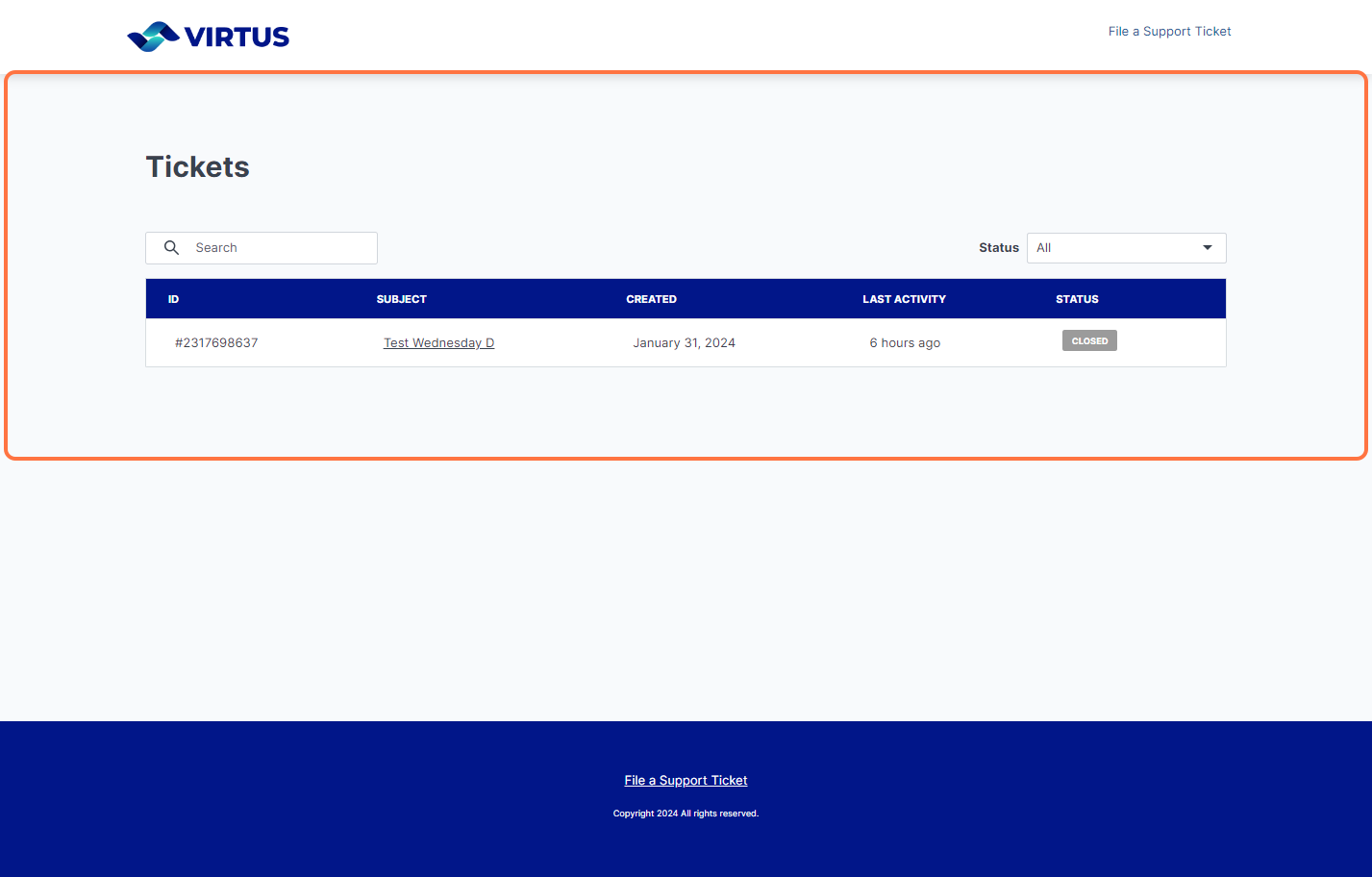
Step 3:

You will be directed to the ticket portal where you can view existing status of the ticket inquiry.
Picture79

Step 4:

Click on File a Support Ticket. 
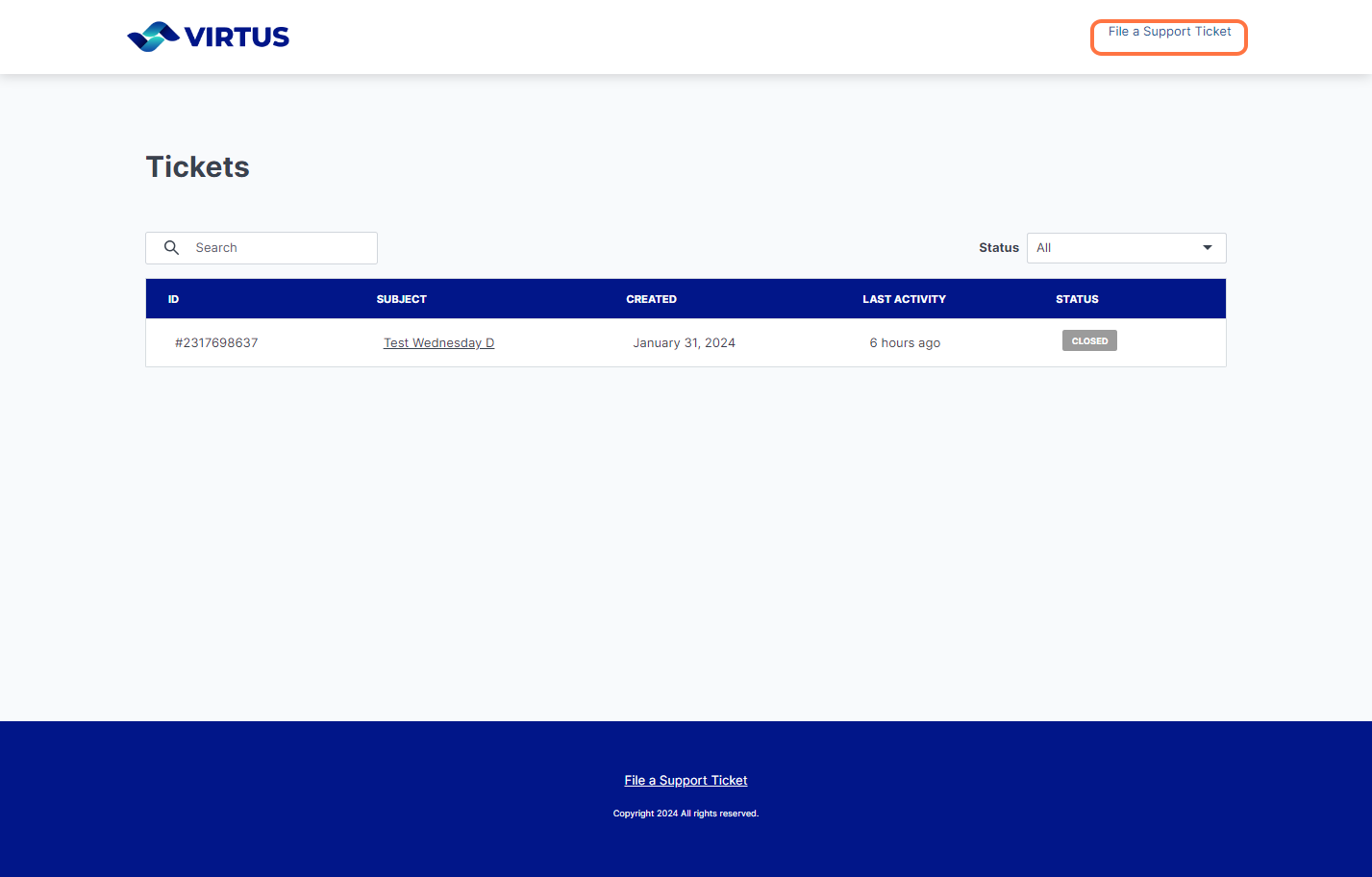
Picture81

Step 5:

Fill in the support ticket form with required and relevant details.
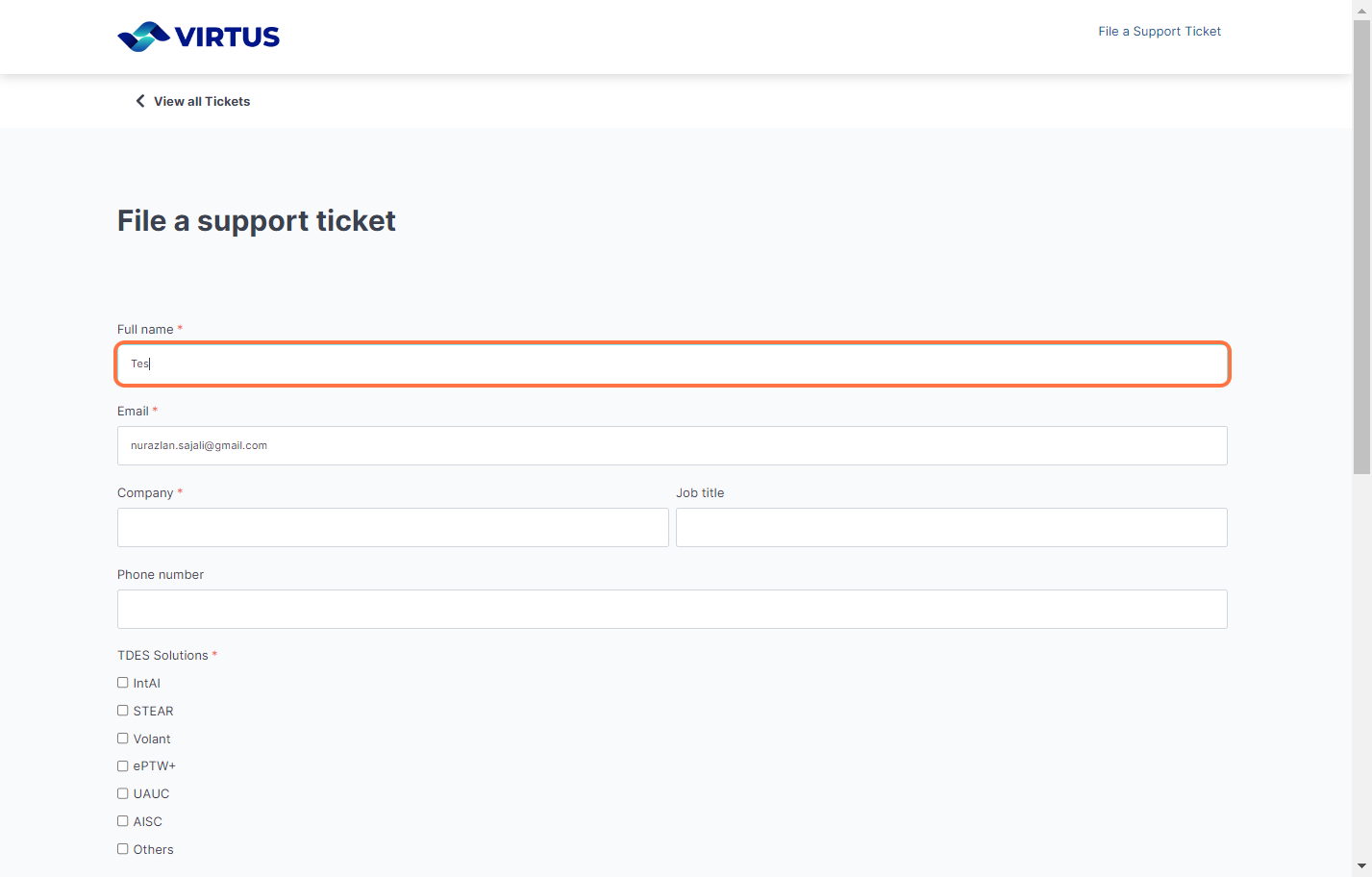
Picture82

Step 6:

After provided with relevant information, click on Submit.

Once you clicked submit, you will see a notification showing the ticket has been submitted.
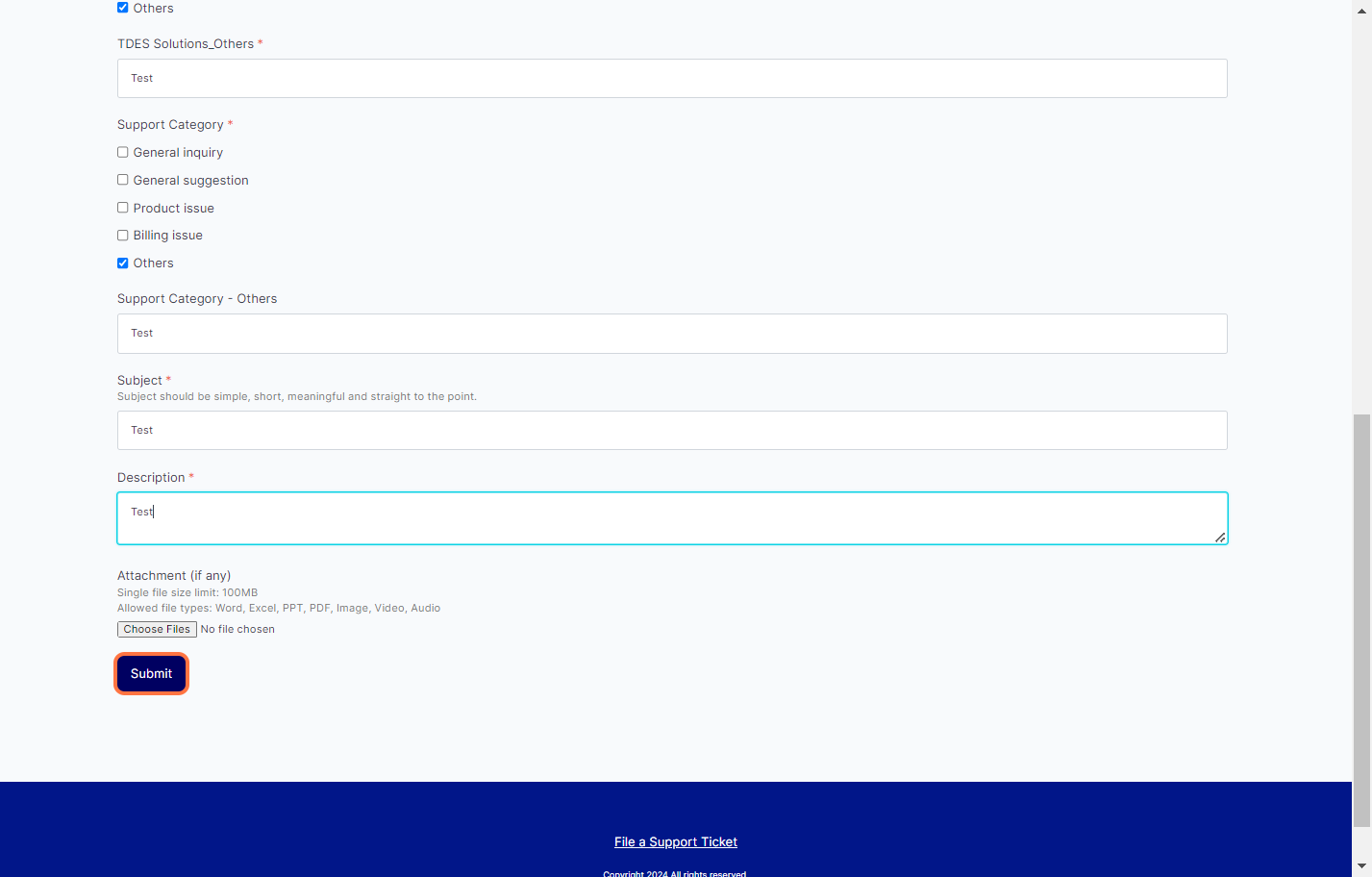
Picture83


OPTION 3:

You can also submit your enquiry or feedback via email to:
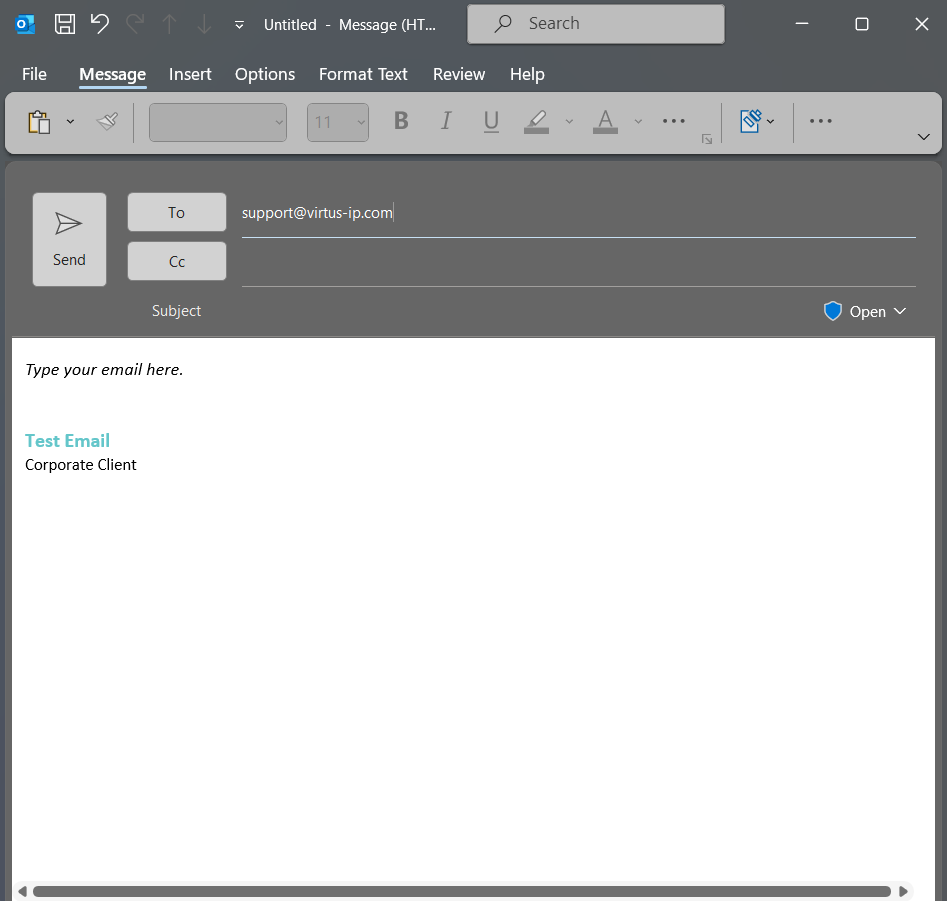
support@virtus-ip.com

Screenshot 2024-02-05 114225

Notes:

You will receive a notification email from Virtus Helpdesk team.

Screenshot 2024-02-05 115511


Updated on September 23, 2025

What are your Feelings

  • Happy
  • Normal
  • Sad

Share This Article :

  • Facebook
  • X
  • LinkedIn
  • Pinterest

Leave a Reply Cancel reply

Your email address will not be published. Required fields are marked *

Quick Links

Contact Us
Privacy Policy

Our Location

Virtus IP Sdn Bhd,
Level 17, PETRONAS Tower 3,
Kuala Lumpur City Centre,
50088 Kuala Lumpur

Let’s Connect

VIRTUS

support@virtus-ip.com

Quick Links

Contact Us
Privacy Policy

Our Location

Virtus IP Sdn Bhd, Level 17,
PETRONAS Tower 3,
Kuala Lumpur City Centre,
50088 Kuala Lumpur

Let’s Connect

VIRTUS

support@virtus-ip.com

© 2025 VIRTUS. All Rights Reserved.